Pivot Chart and Table
Merge Categories (or Tags)
AddMaple makes it easy to merge categories or tags into a single value. This is especially useful for combining smaller categories or creating custom groupings. In this example, we’ll show you how to merge Sweden, Norway, Finland, and Denmark into a single category called “Scandinavia.”The first step is to expand the column containing the categories you want to merge and make sure you are on the “Edit” tab. 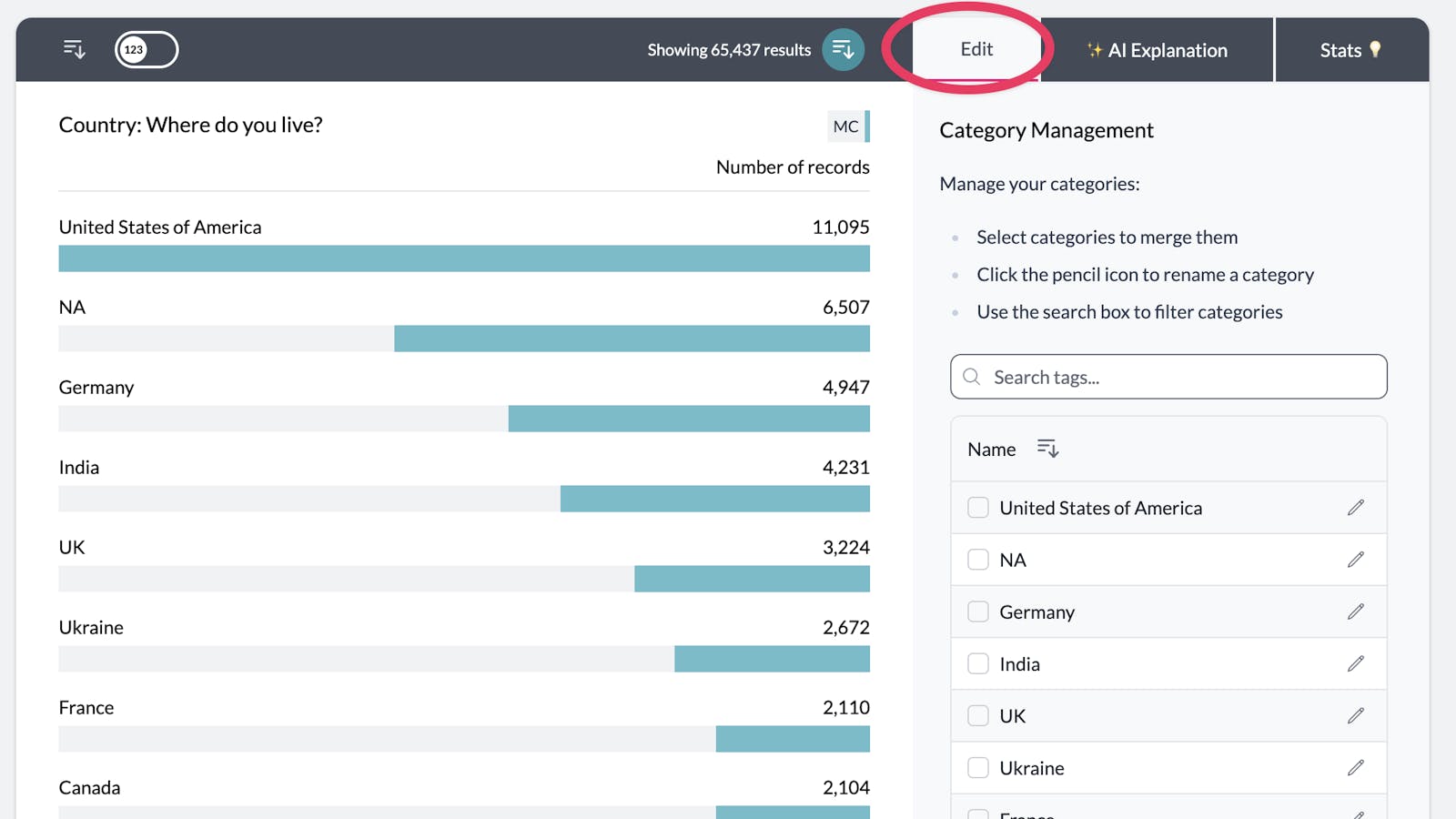
You can search for the categories you want to merge. In this example, we’ve located “Sweden.” 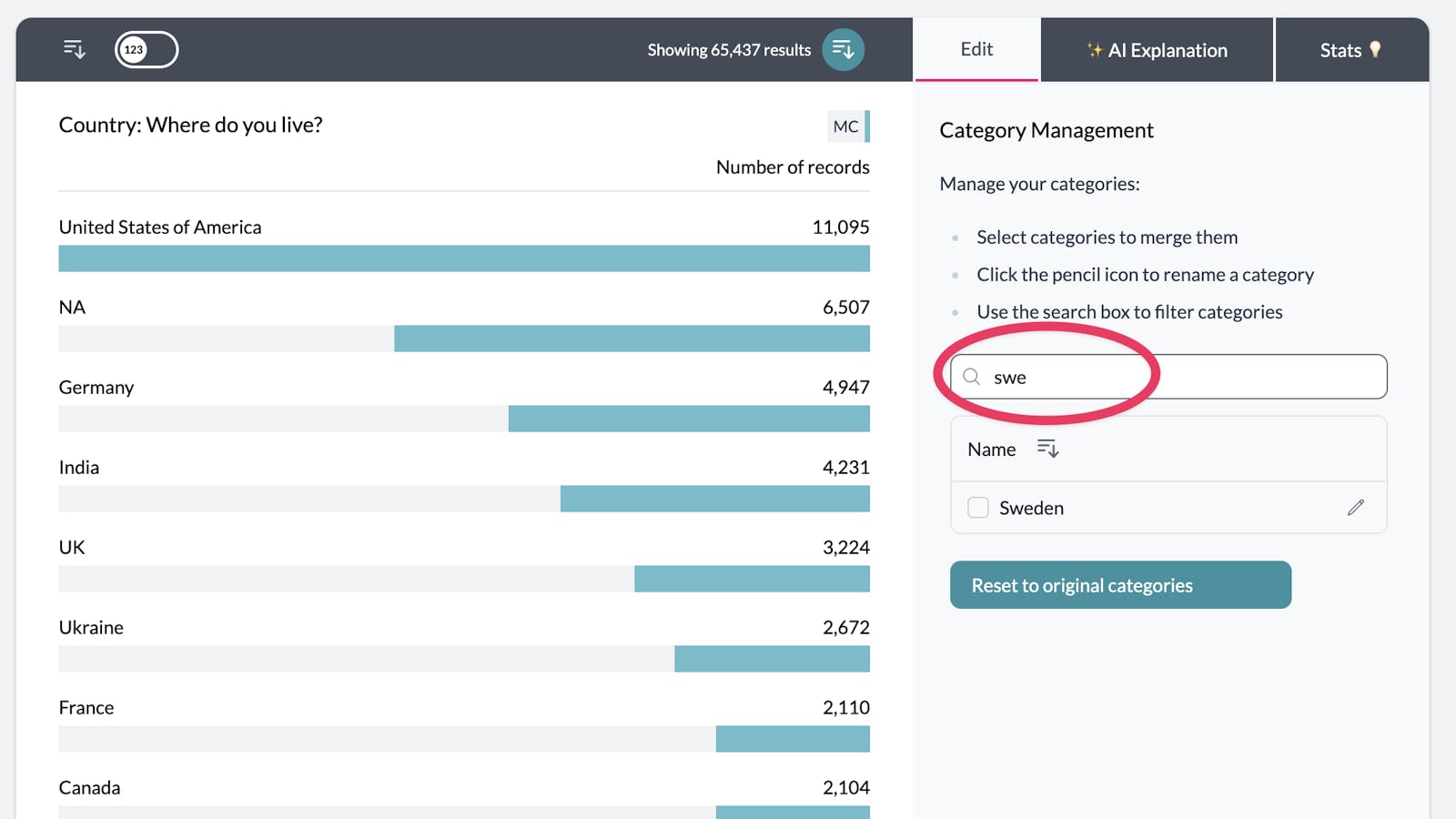
Whether by searching or scrolling, select all the categories you want to merge. 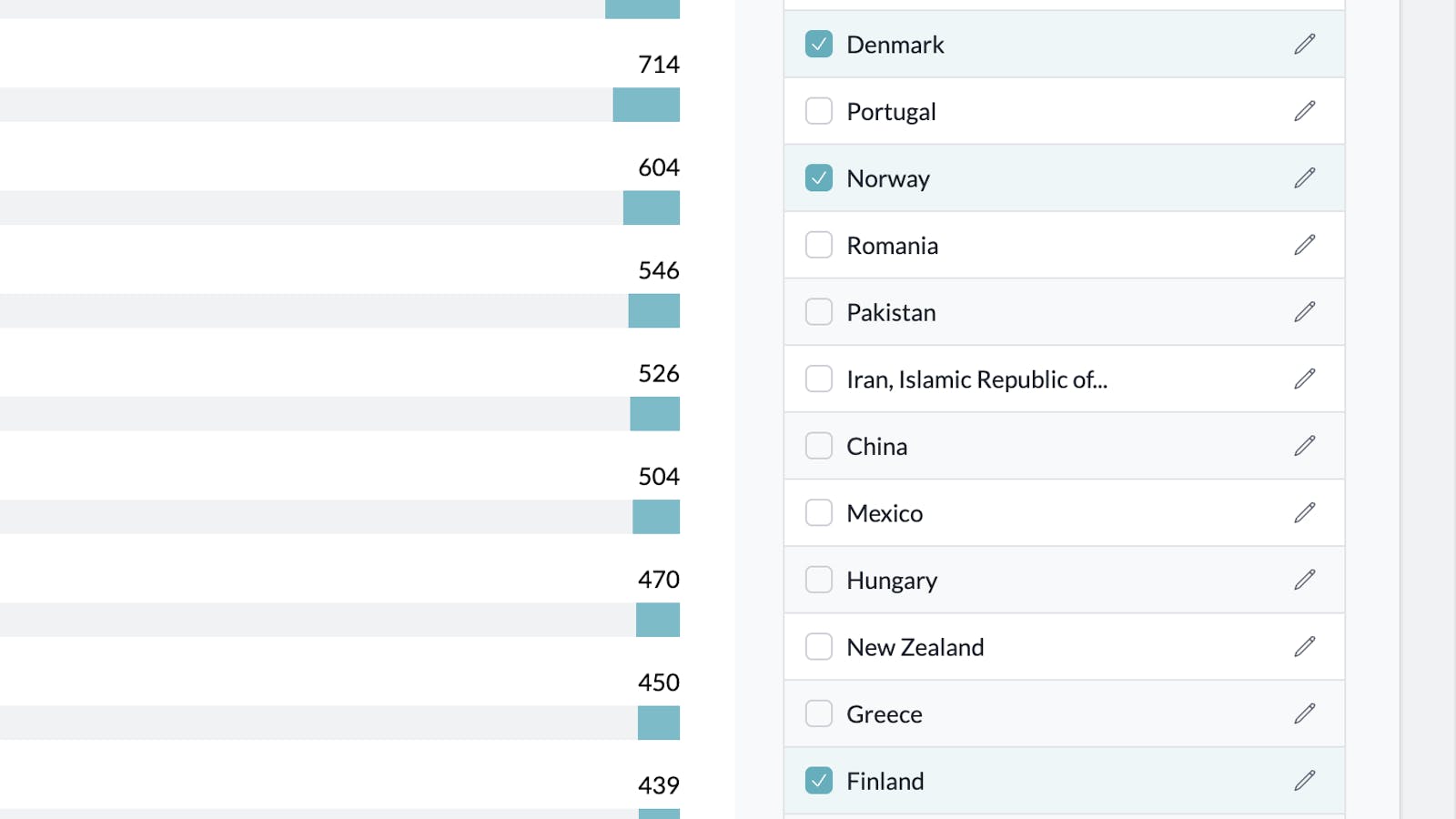
Then, click the “Merge Selected” button at the bottom of the list. 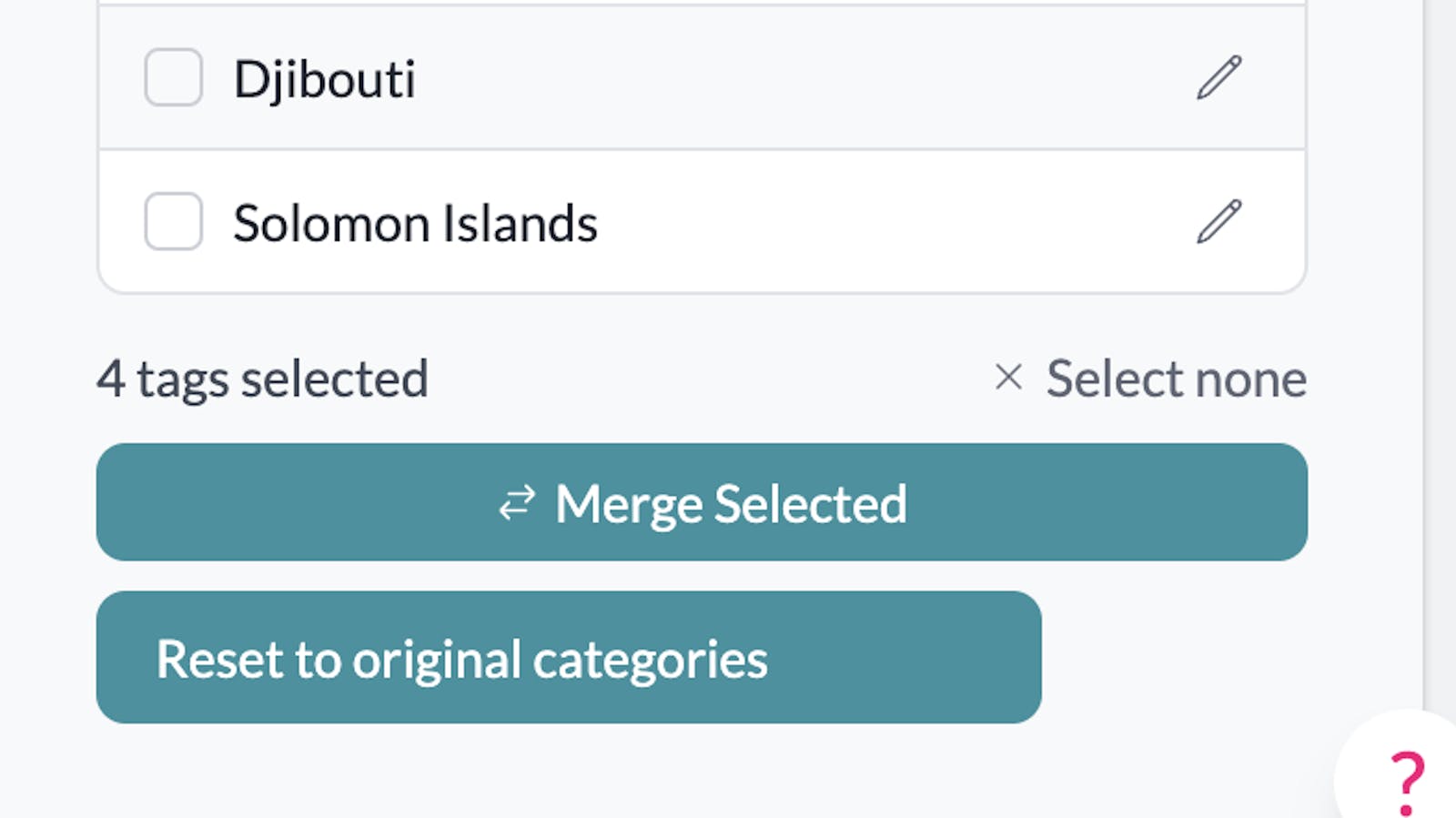
A pop-up box will appear, allowing you to choose either one of your selected categories as the name for the merged category or enter a new name of your choice. 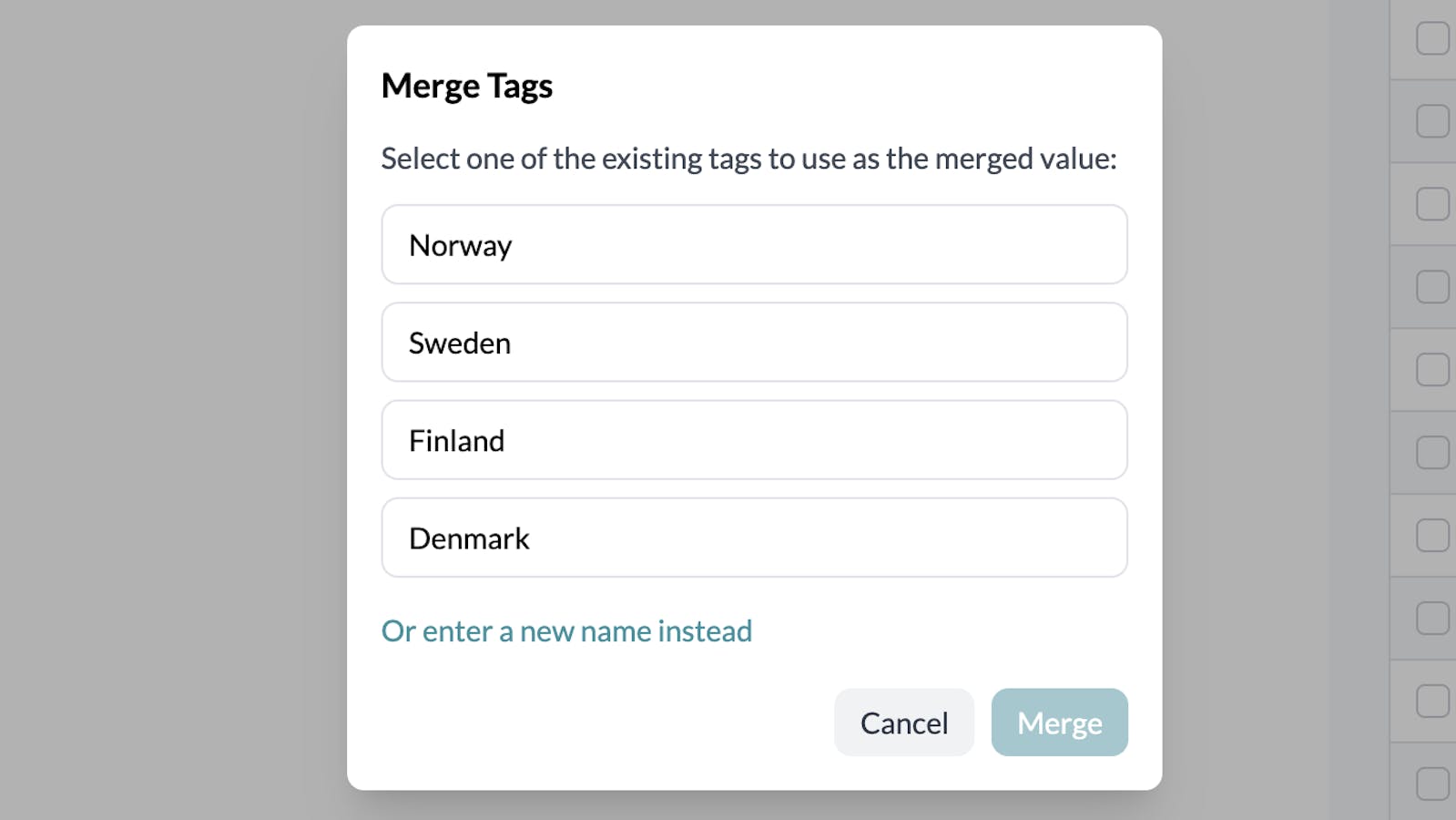
In this example, we’re giving our merged category a new name: Scandinavia. 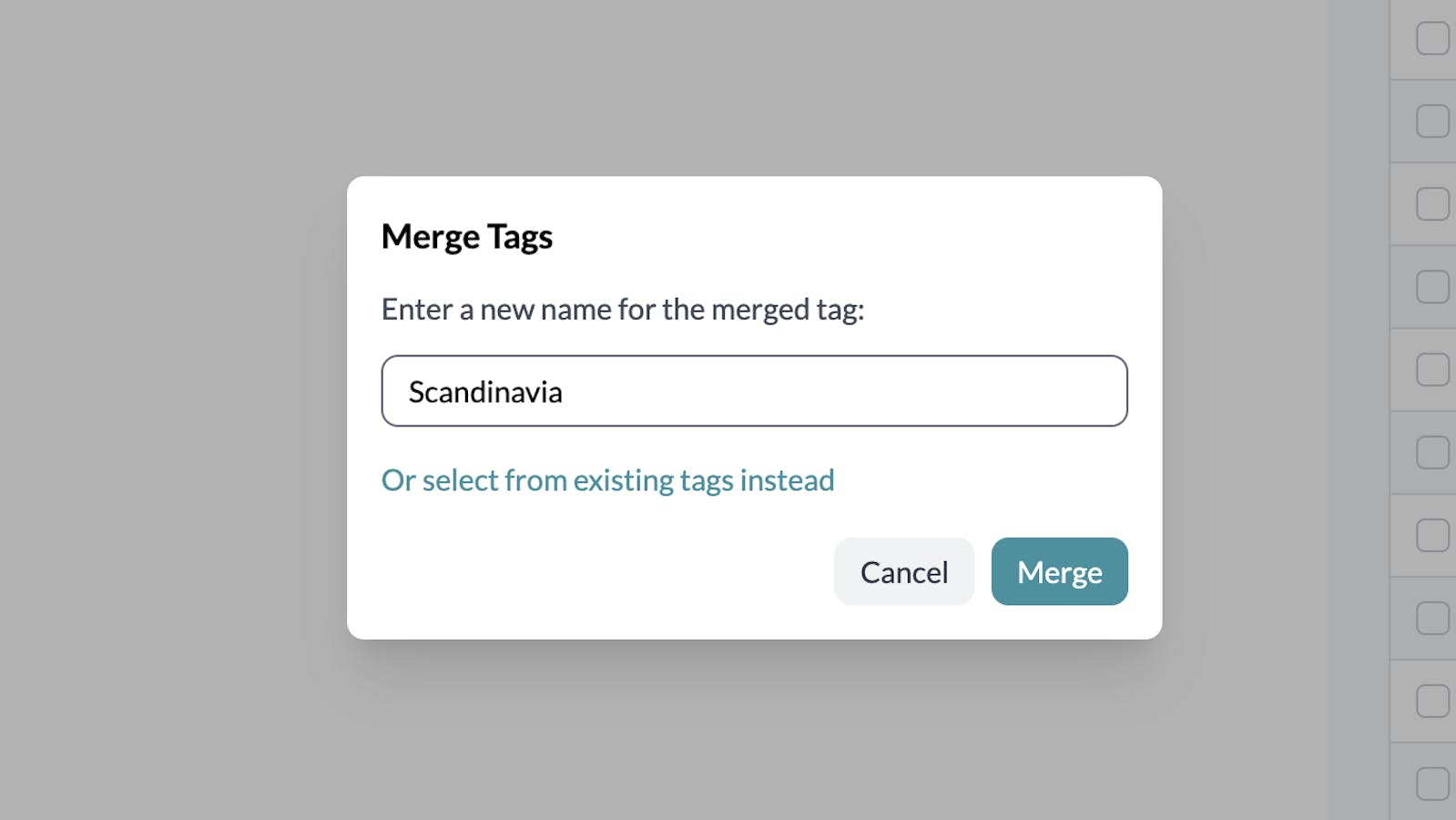
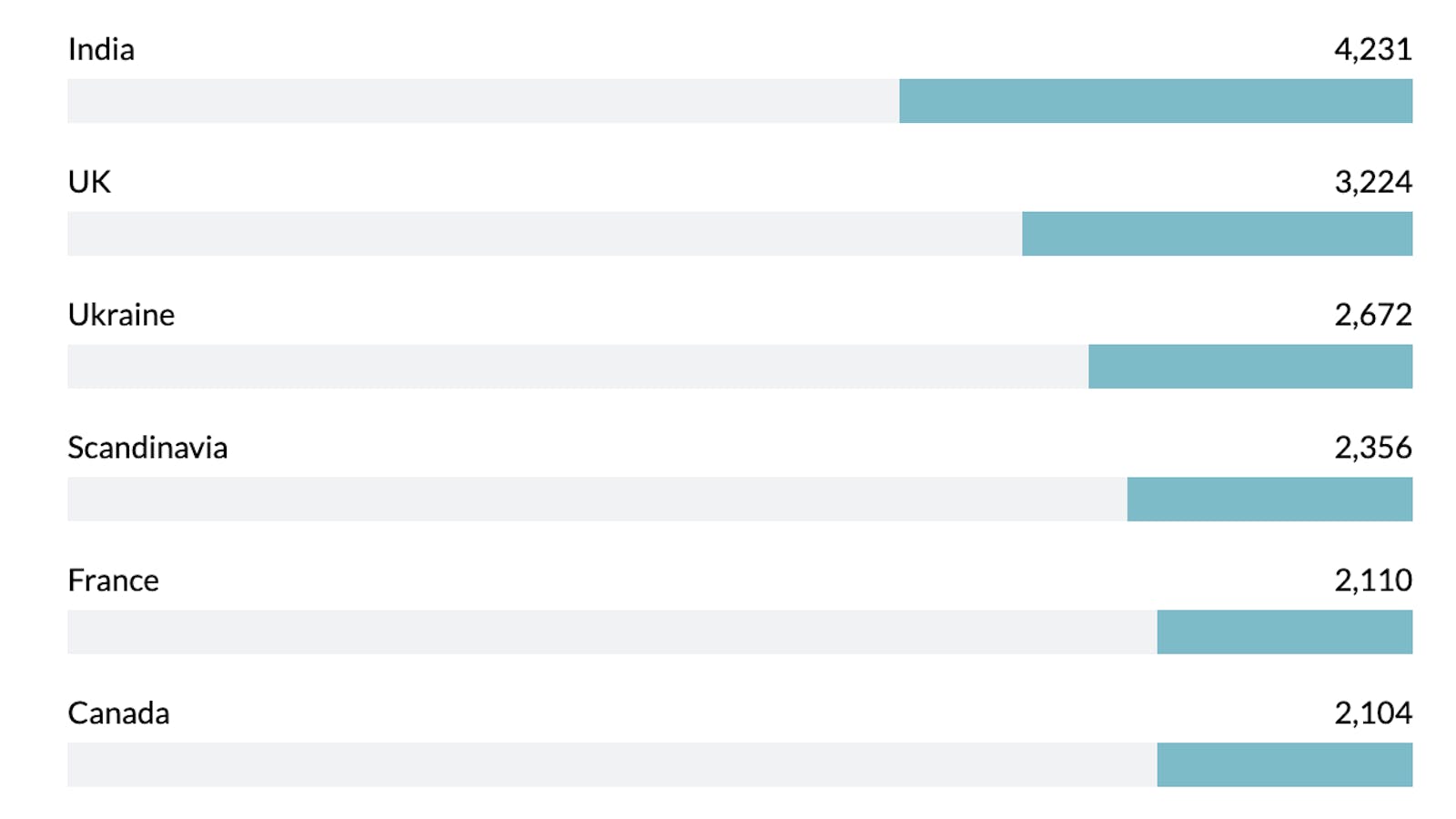
After clicking "merge", the results will update instantly. Here, you can see the combined count for Sweden, Denmark, Norway, and Finland under the new merged category, Scandinavia.
Remember, your original data remains unchanged—AddMaple simply saves this merge logic in your project settings.