
Ask AI questions in a published Insight Hub
Clients can ask follow-up questions in plain English when they open an explorable published Insight Hub. They use Ask Maple and the Analysis Agent to get answers tied to the dataset you made available.
This guide documents the viewer path shown in a published explorable hub. Analyst setup steps come from existing dashboard and explorable docs.
Before clients can ask questions (analyst)
Clients can use AI in explore mode only after you:
- Publish the dashboard
- Turn on Data Explorable and select columns
- Save Changes in the Publishing and Sharing modal
See Make data explorable and Publish a dashboard. For the full client exploration path, see Client self-serve data slicing.
Step 1: Open the hub and click Explore
On a published hub with explorable data, the client opens the link you sent. They see a banner that the Story Dashboard includes explorable data and an Explore button at the top.
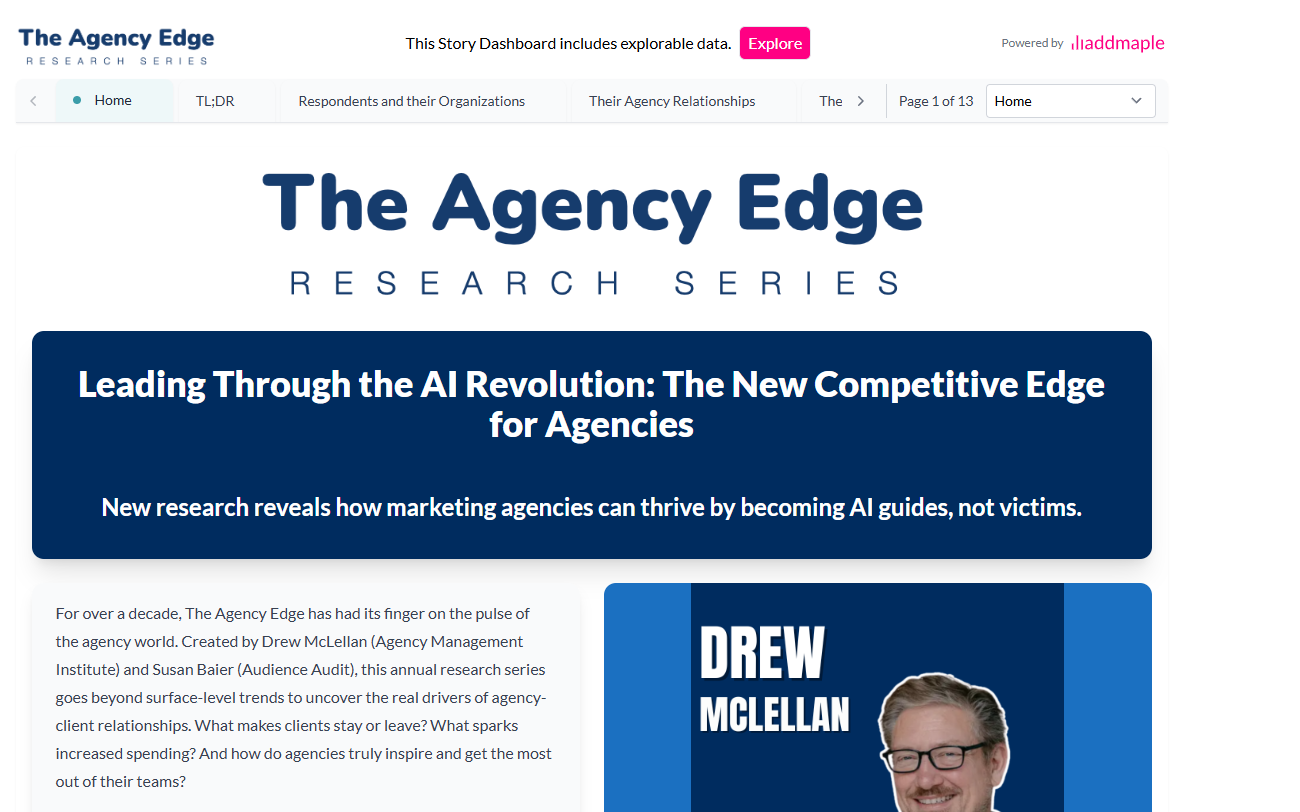
The client clicks Explore to open the columns you selected in the full AddMaple interface.

Step 2: Open Ask Maple on a chart
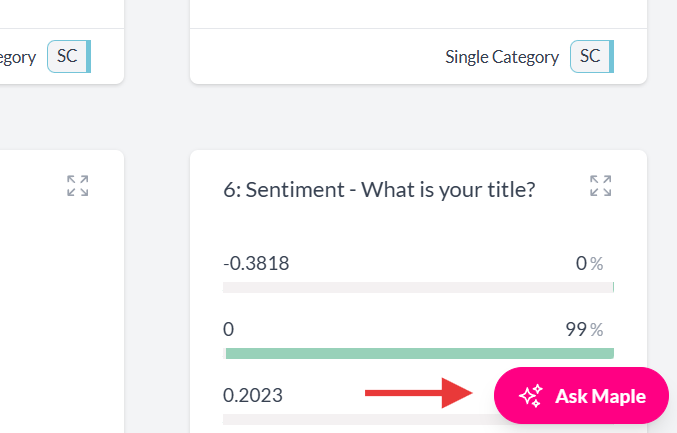
In explore mode, charts show an Ask Maple button (sparkle icon). The client clicks it on the chart they want to ask about.
Step 3: Choose Analysis Agent
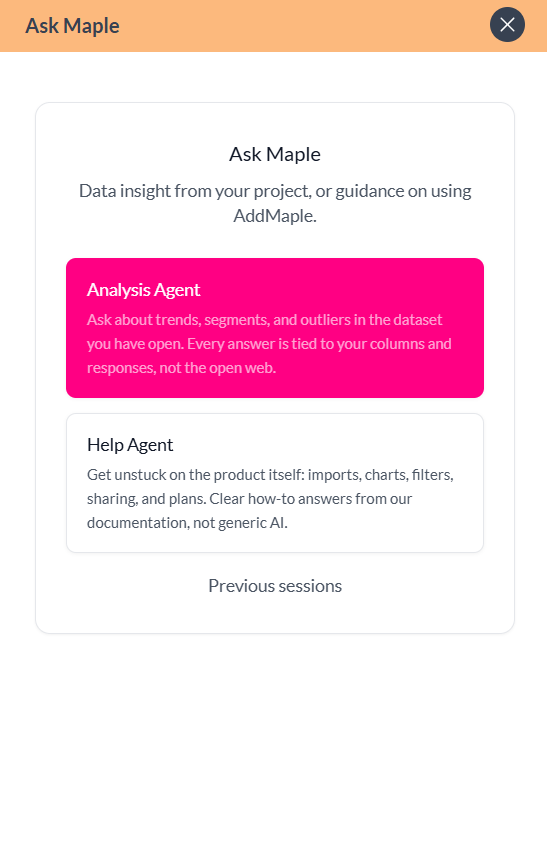
AddMaple opens Ask Maple with two options:
- Analysis Agent: Answers questions about trends, segments, and outliers in the dataset you have open. Answers are tied to your columns and responses.
- Help Agent: How-to answers about using AddMaple (imports, charts, filters, sharing). Not for analyzing client data.
For follow-up research questions, the client selects Analysis Agent.
Step 4: Ask a question
The Analysis Agent chat opens. The client types a plain-English question and clicks Send.
Example questions (from the Use Analysis Agent guide):
- "What stands out in this chart?"
- "Summarize the key differences between segments"
- "Which segments over-index on Positive responses?"
- "What is the most common title?"
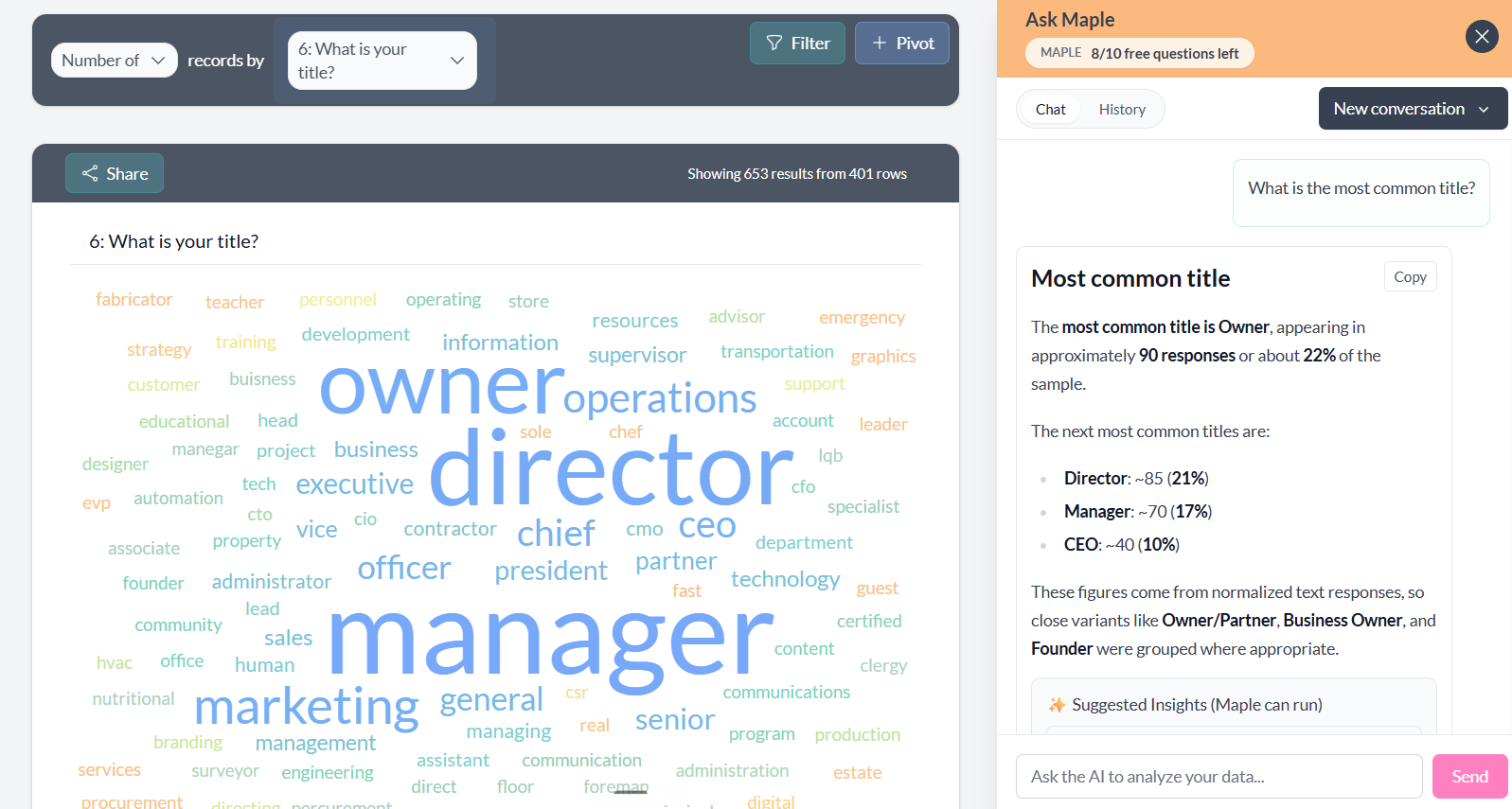
The agent returns an answer based on the open dataset. To start a New conversation or review Previous sessions, close the chat and return to the Ask Maple entry screen.
Analyst parallel: Analysis Agent in your project
While building a study, analysts can also use the Analysis Agent inside a project. That workflow uses the ? help button and New analysis conversation. See Use Analysis Agent.
The published hub path uses Explore and Ask Maple on charts instead, but the Analysis Agent answers questions the same way.