
How to combine columns
Sometimes survey exports split a single variable across multiple raw columns. For example, a multi-select question such as "Which colors do you like?" might export into three separate columns: Red, Yellow, Green. Each row then shows values like 1 | 0 | 1 or Red | | Green.
In these cases, you can use Combine Columns to merge them back into one variable. This is especially useful for multi-select questions that have been split across multiple columns.
Where to find it
Open Manage Column(s). The interface has three parts:
- On the left, a searchable list of all raw columns
- On the right, a details pane showing the selected column (or combined/grouped column)
- At the bottom right, a Save button to confirm changes
How to combine
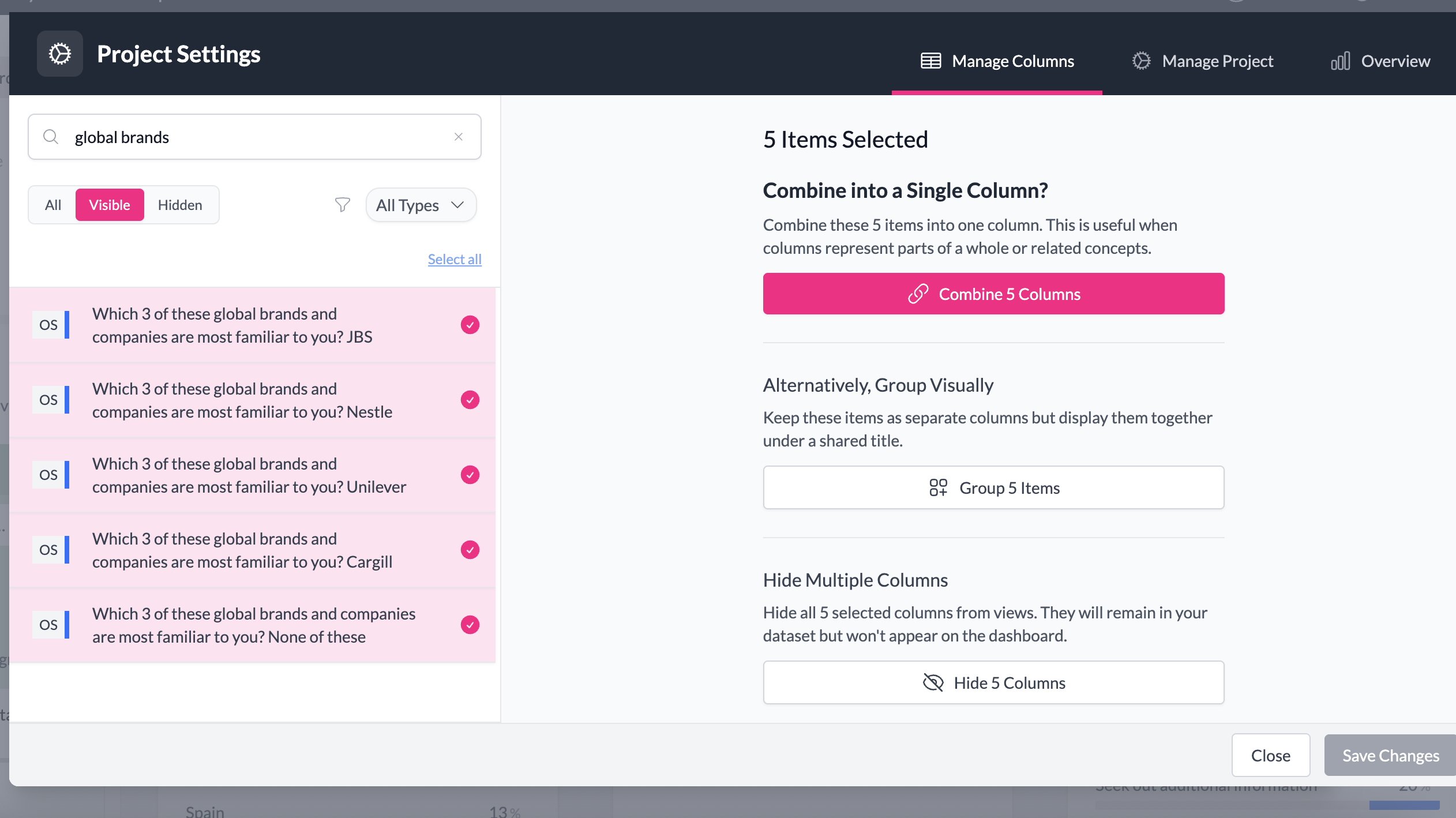
- In the list of columns (left panel), click the first column you want to include.
- Hold Shift and select additional columns. You can also select a continuous range this way.
- The right-hand details pane will update with a new screen and a Combine Columns button.
- If the columns cannot be combined, an error message will explain why.
Confirming values
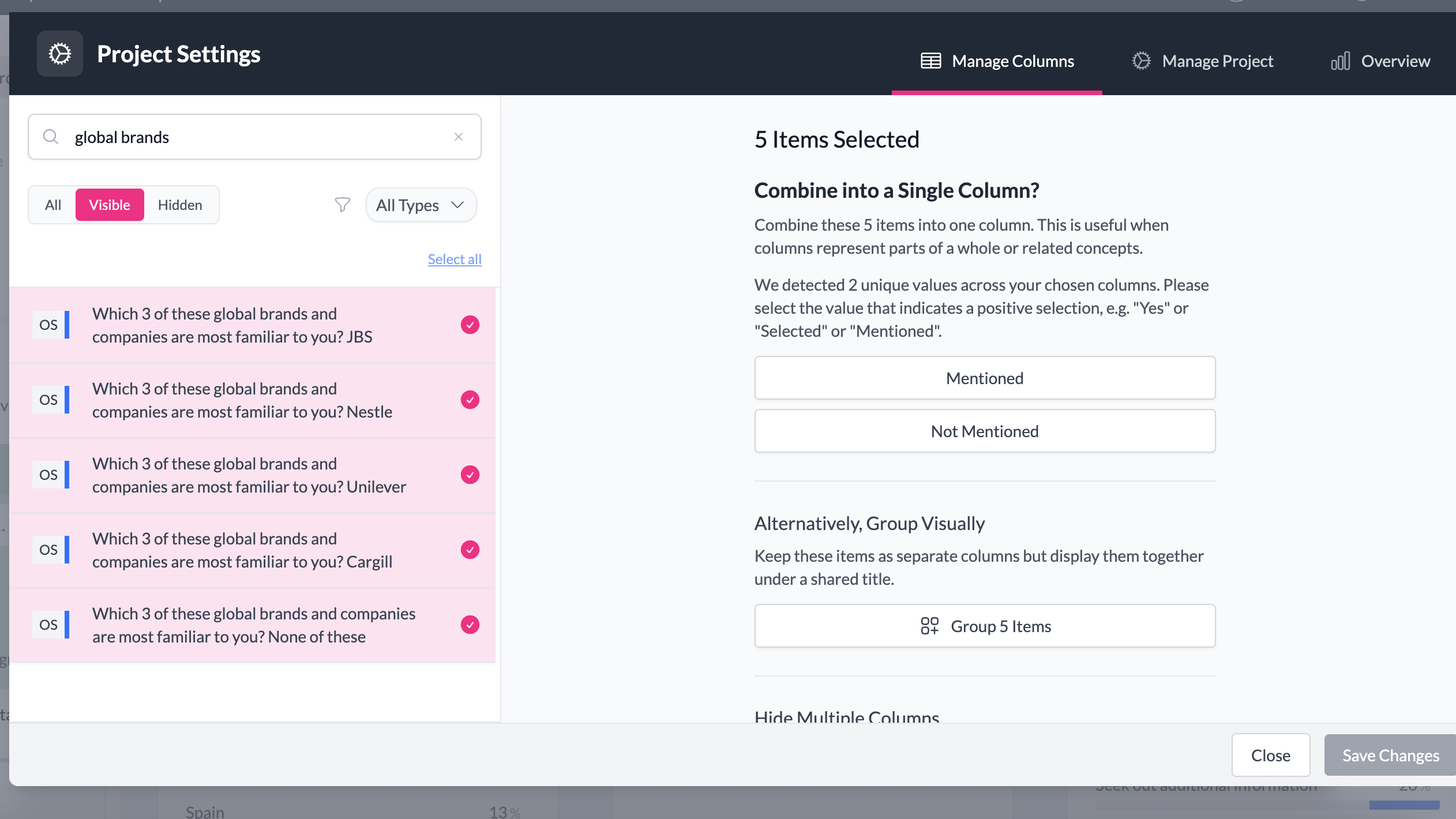
- If each column contains a single value (e.g. "Red", "Yellow", "Green"), AddMaple will combine them immediately.
- If columns contain two values (e.g. "checked/unchecked",
1/0, "Yes/No"), you'll be asked to confirm which value should be treated as positive and which as negative.
After combining
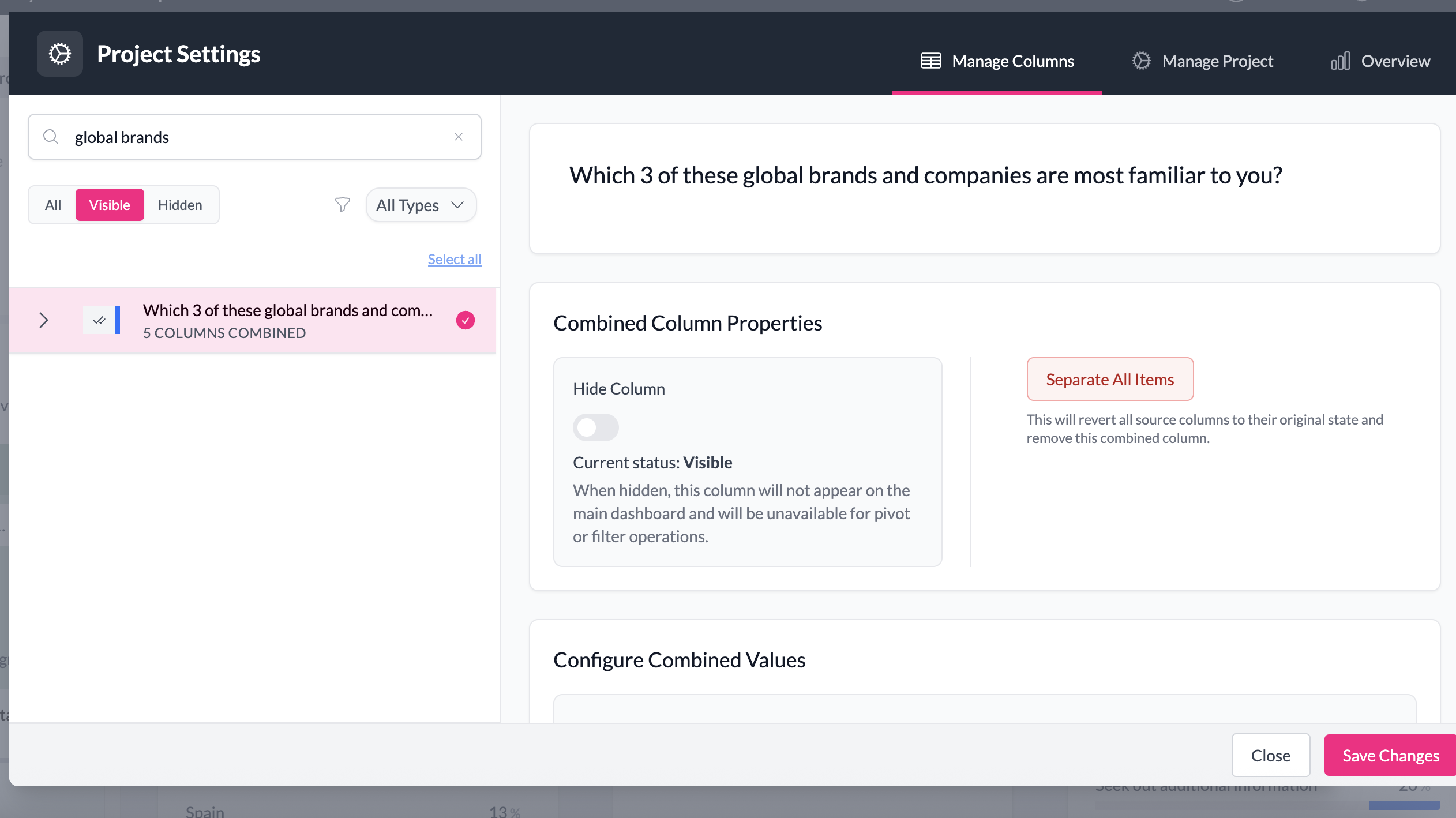
- You'll see a new Combined Column details view in the right pane. It looks like a standard column view, but at the bottom it shows the source columns that were merged.
- In the column list (left panel), the raw columns will collapse into a single combined column. A chevron indicates you can expand to see the underlying source columns.
Saving and editing
- Click Save in the bottom right for your changes to take effect.
- Columns that are not compatible cannot be combined — the option will be blocked.
Separating columns
Separating is not only for undoing a manual combine. Sometimes AddMaple will automatically combine raw columns when it detects a multi-select or single-select question spread across multiple columns. If you prefer to work with those columns individually, you can separate them.
To separate:
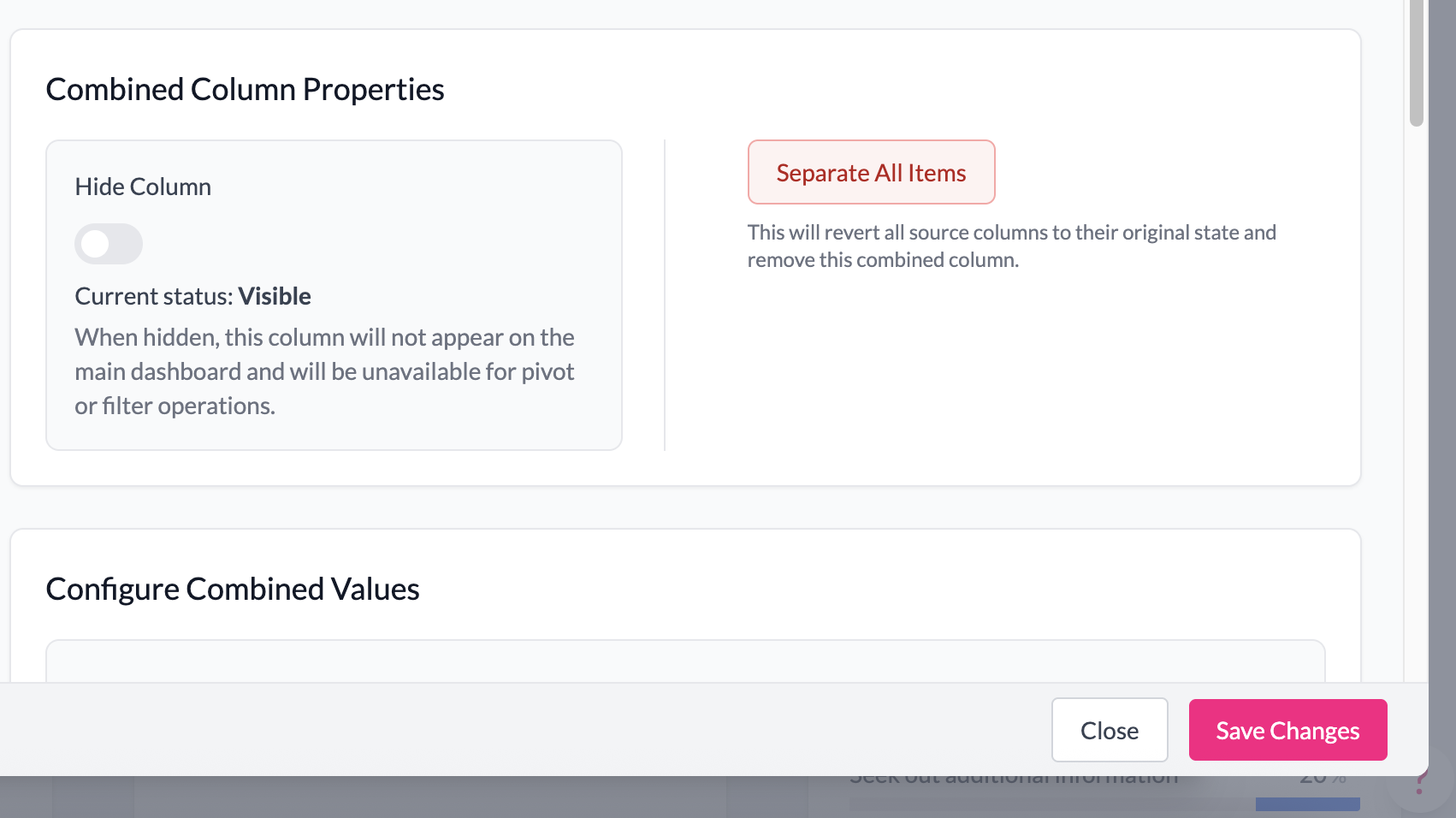
- Open the combined column in the details pane.
- Click the Separate button in the top right.
- The combined variable will be removed, and the raw source columns will reappear as individual variables in the column list.
You can combine them again later if needed.
Example:
A survey platform may export Q10a, Q10b, Q10c as separate columns for a grid of product features. AddMaple might automatically combine these into one multi-select question. If you prefer to analyze each feature separately, use Separate to break them back into individual variables.
Example
A survey export contains three columns: Red, Yellow, Green. Each row has either 1 or 0 in each column.
- Select the three columns and click Combine Columns.
- Confirm that
1is positive and0is negative. - The result is one multi-select variable called "Colors liked," which behaves consistently in charts and exports.
Key points
- Combining is useful for reconstructing single variables split across multiple columns.
- Separating lets you break apart either manual or automatic combines.
- The raw data is never modified.
- All changes apply across your project, including exports.