
Single Column Pie Chart
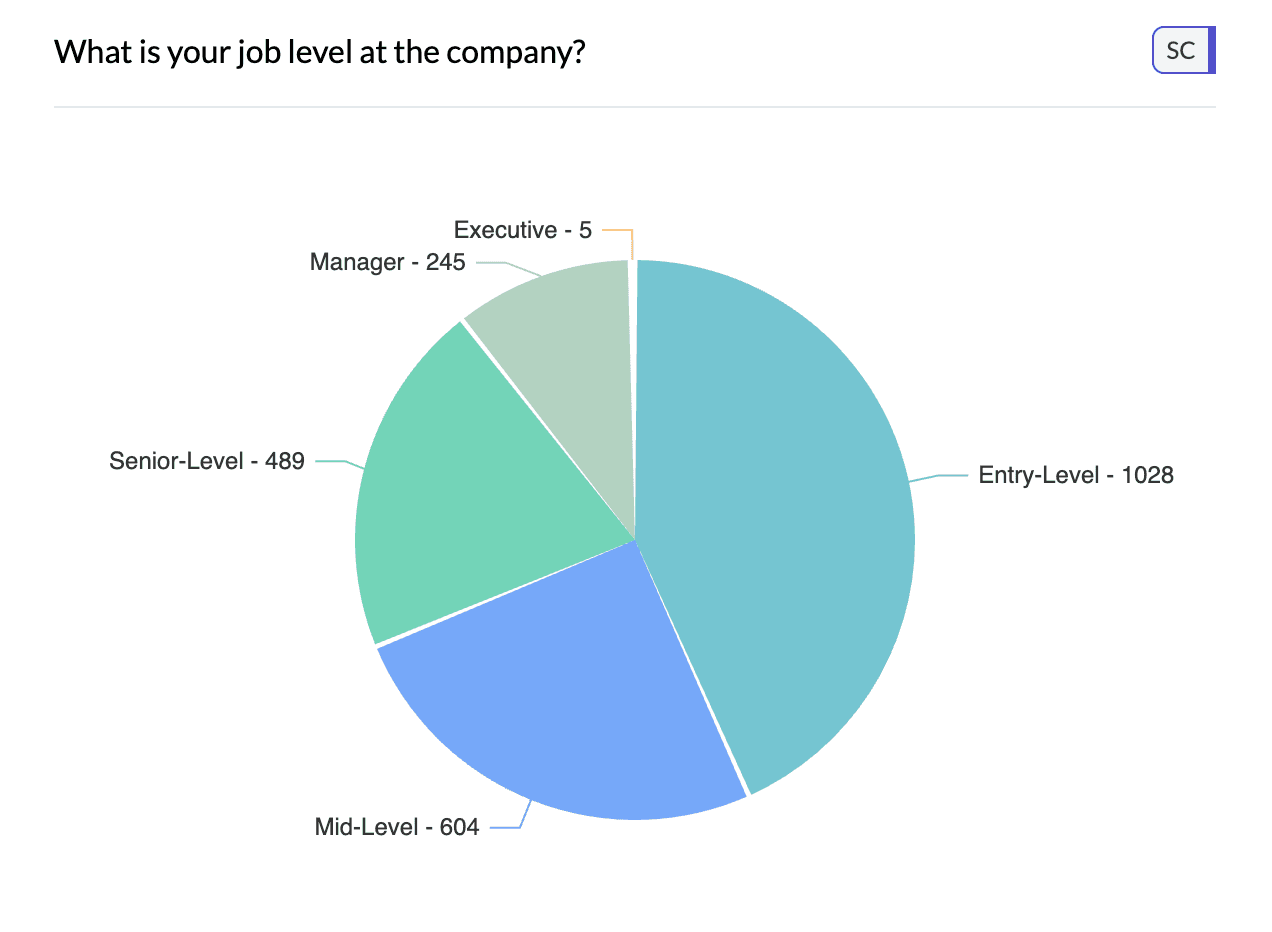
A pie chart shows one categorical column as proportions: each category is a segment, and the angle of each segment represents count or share of total. It's available when you're viewing a single column via More Charts.
When to use it
- One categorical column — Same data as a single horizontal bar, shown as part-of-whole.
- Part-of-whole — When you want to emphasize share of total (e.g. market share, response mix).
- Classic proportions — Full circle; each segment's angle = share of total.
How to create it
- Select a single categorical column — Only one column in the pivot.
- Open More Charts — On the left, click More Charts.
- Choose Pie — Select Pie. The chart updates to show segments by count or percentage.
Small categories may be merged into "Other" to keep the chart readable; this depends on AddMaple's settings.
1Pie chart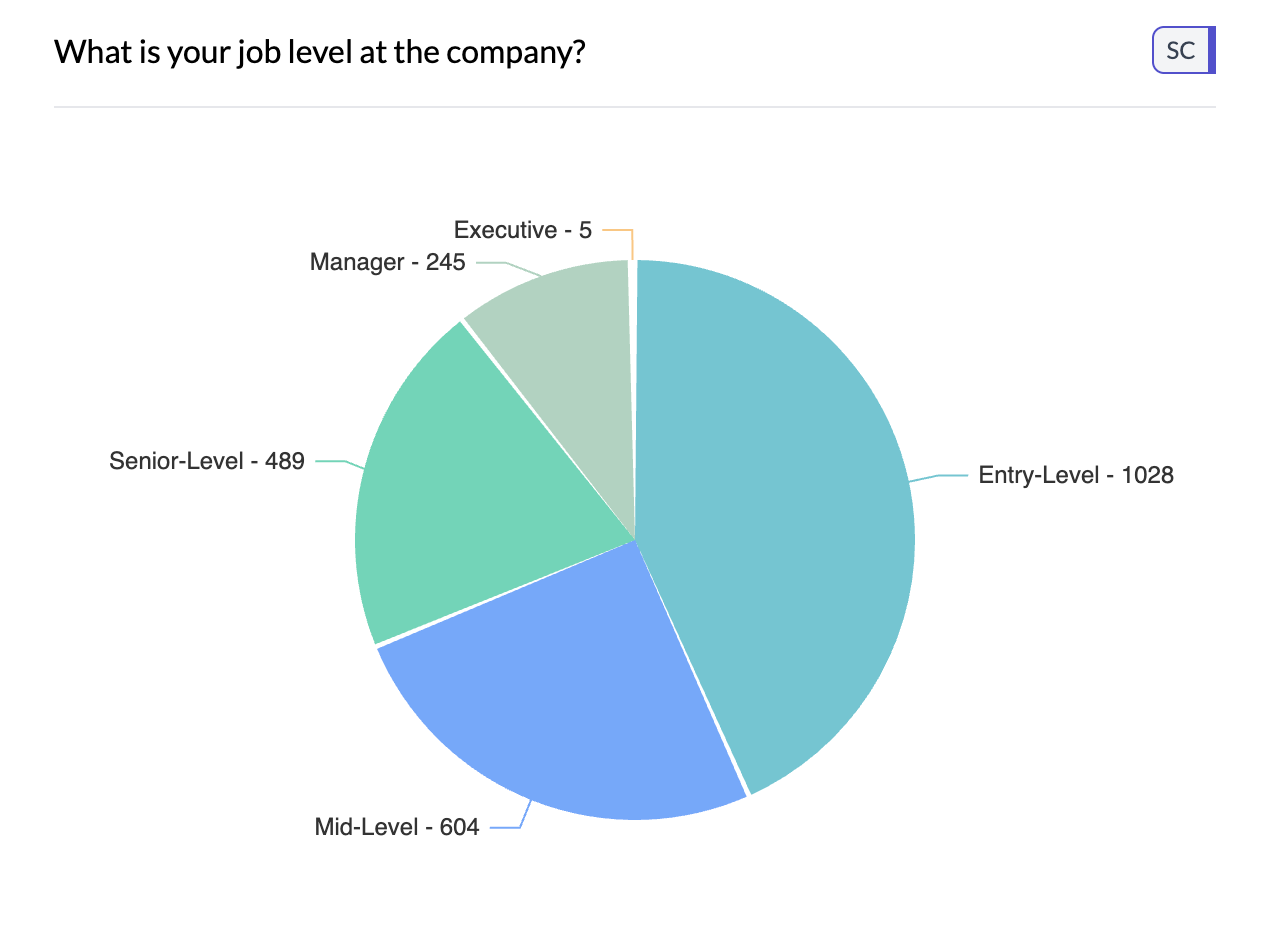
2Choose pie from More Charts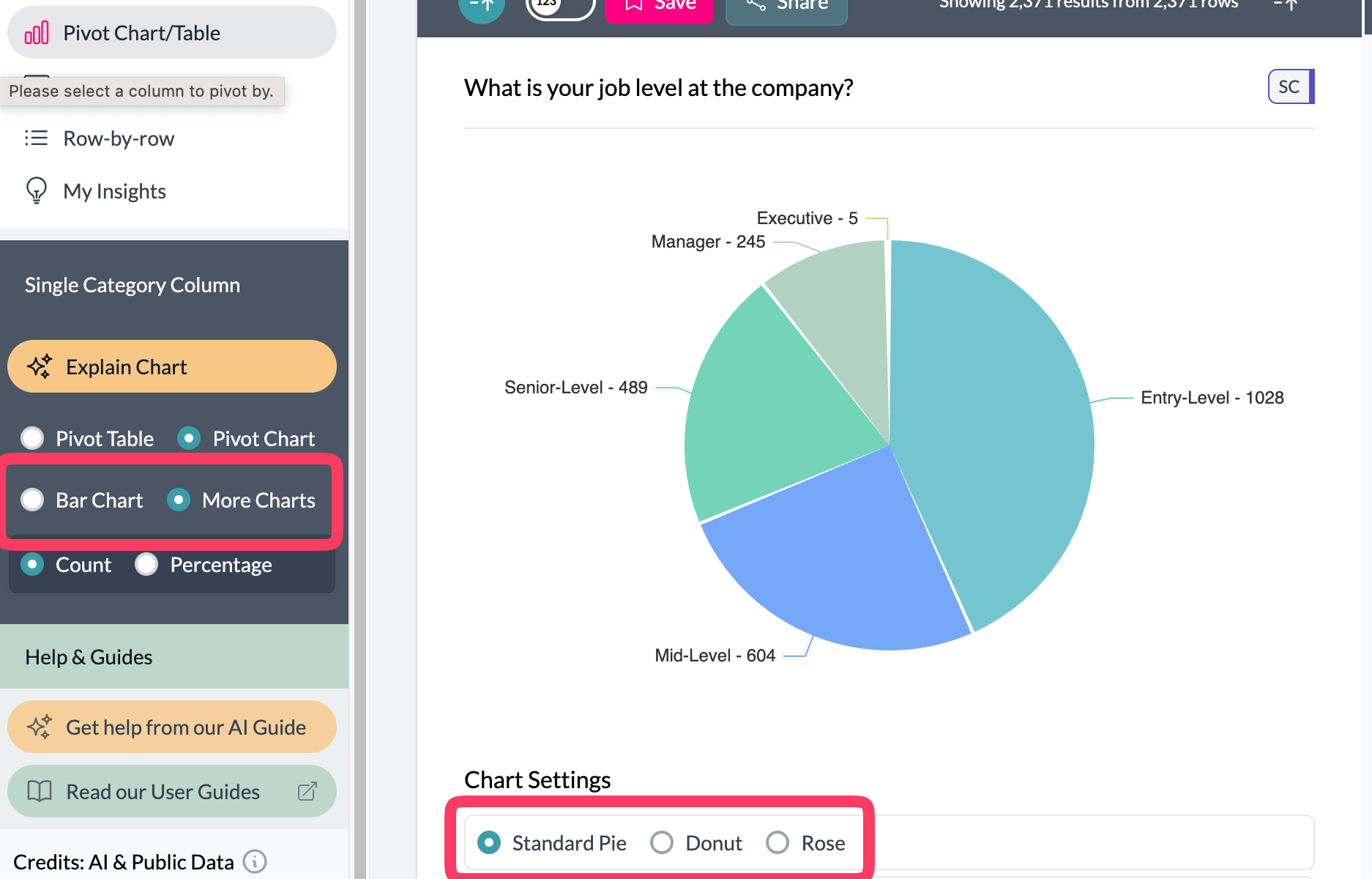 3Pie chart settings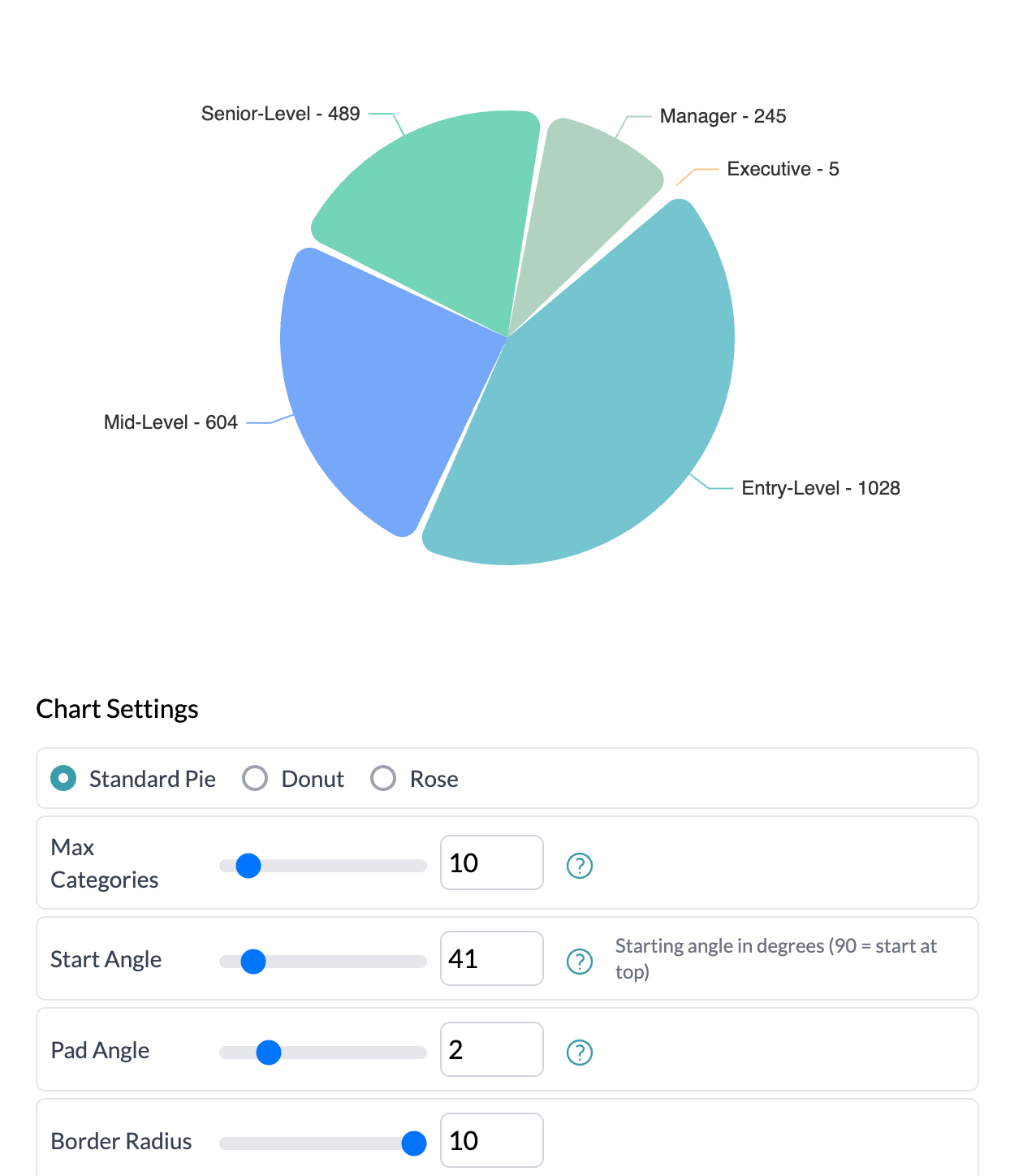
What you see
- Full circle — Each segment's angle = share of total.
- Legend — Category labels and colors; project colors apply.
Use aggregation to show Total, Average, or Median of a numeric column by category. See donut, rose, additional charts.
Key points
- One categorical column; access via More Charts → Pie.
- Each segment's angle = share of total.
- Works with aggregation (Total, Average, etc.) for aggregated proportions.