


Ask Maple · Mosaic in depth
Ask MapleA research agent that works inside the analysis — not in another tab.
Maple is the AI agent built into AddMaple. It sits in a panel beside whatever you are looking at — a table, a chart, a dashboard — and you talk to it in plain English. The difference from a chatbot is what it can do: Maple can read the table on your screen, run an analysis, open the result next to you, code open-ended comments, build a new variable, fit a segmentation with real diagnostics and draft a finding into the story. Then it stops, and you decide whether to publish.
New to AddMaple?
AddMaple is a workspace for analysing survey data: you import a study, and every question is charted, tabulated and ready to ask questions of. This page explains one part of it from scratch — what it is, when you’d use it, and how to read what it shows you.
Every image is the real product, rendered from one illustrative study — the Sparkling tea concept test, 1,204 respondents, 112 questions. Nothing is mocked up.
Start with the whole study →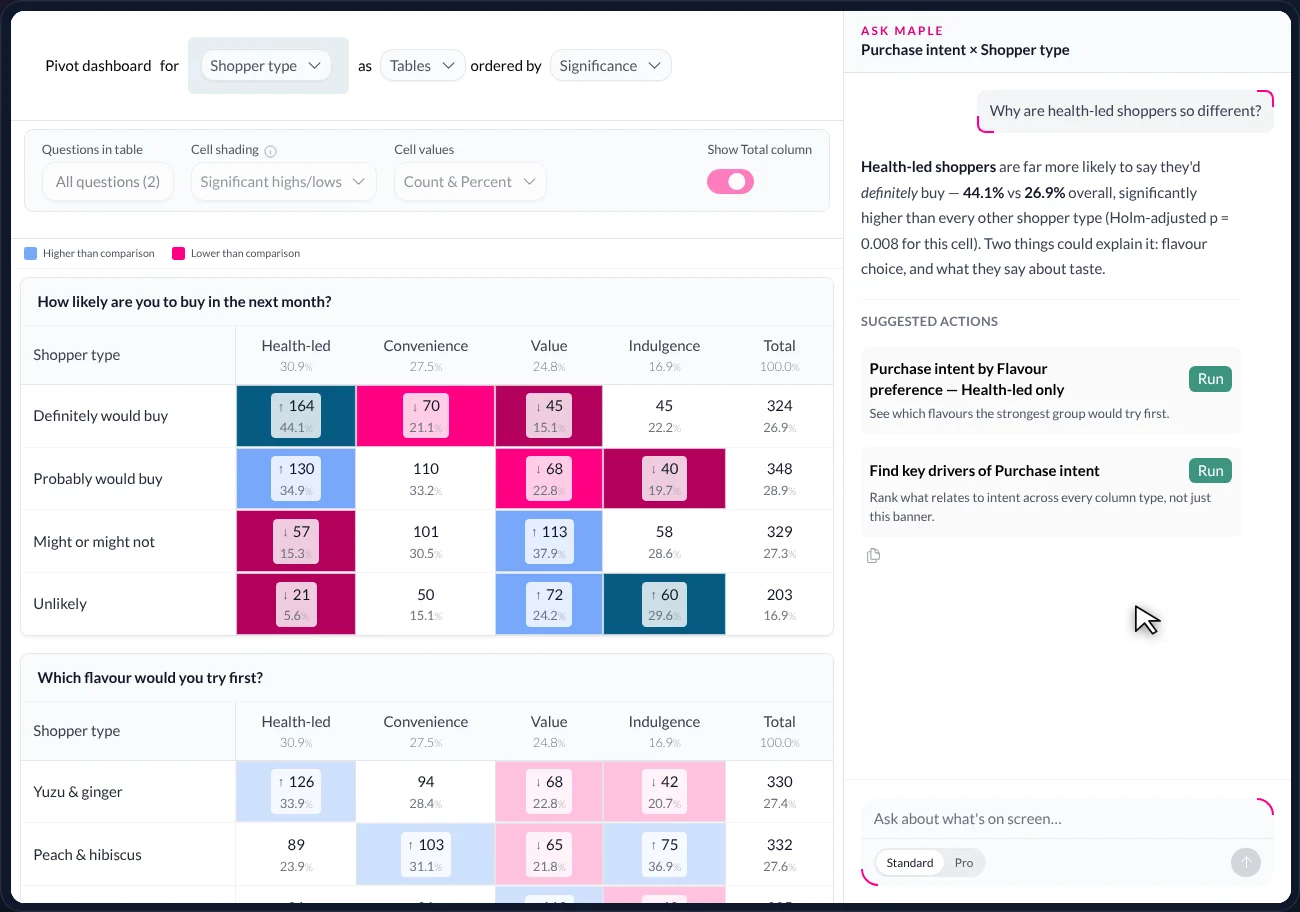
In short — 1 minute
Or read the full walkthrough — about 12 minutes
- What it is. An AI agent inside AddMaple that can see your current view and operate the product’s own analysis engine — not a separate chat window you paste numbers into.
- What problem it solves. The gap between “I have a question about this table” and “I have run the analysis that answers it” is usually several tools and an afternoon. Maple closes it to a sentence.
- What you do. Ask about what is on screen. Press Run on a suggestion. Ask for a chart, a coded column, a new variable, a segmentation, a draft finding. Read what it did — every step is listed.
- What you get. Real results from the same engine as the tables (same filters, same base), opened beside the conversation so you can check them; every change recorded and reversible; and a Publish button only the researcher presses.
- 6
- kinds of work in the one investigation below
- k = 2…6
- segmentation candidates it fitted · 2 runs
- 672
- respondents in the variable it built
- 1
- button only the researcher presses
01 · What it is
An assistant with access to the data, the engine and the screen.
Most AI assistants for analysis sit outside the tool: you copy a table in, they describe it, you copy the idea back out and do the work. Maple is wired into AddMaple itself. What it says comes from the computation it just ran, and what it makes appears in the product as a real object.
The problem
A chatbot in another tab can describe. It cannot do. It does not know which filter is on, what the base is or how a NET was defined, so its numbers drift from yours — and when it suggests “look at this by flavour”, that is still your afternoon.
What it does
Reads the project you are in — columns, labels, filters, the view on screen — and operates the same engine that draws the tables. It explains what you are looking at, suggests the next analysis and runs it, opens the result beside you, and can build variables, code open-ends, fit models and draft story blocks.
What you end up with
Answers that cite the cell on screen; charts and tables you can filter and save; new columns the rest of the study can use; a list of every step it took and the ability to undo any of it. Publishing stays with you.
An assistant beside the product
- Paste the table in; hope the numbers survive
- Get a summary of what you already see
- Ask for a chart; receive a description of one
- Can’t touch the data, so can’t test the idea
Maple inside the product
- Reads the table you are looking at
- Suggests the next analysis and runs it
- Opens the chart beside you — a real, editable chart
- Builds variables, fits models, drafts the story
02 · What you are looking at
The Ask Maple panel, part by part.
Before the walkthrough, here is the screen itself. Maple opens in a panel on the right of whatever view you are in; the view stays live on the left.
Table Studio on the left, Ask Maple on the right. The conversation is about the table.
- The view on the left
- Whatever you were working on — here, Table Studio showing purchase intent by shopper type, shaded for significance. Maple can see this view: its question, banner, filters and the numbers in it.
- Panel header
- ‘Ask Maple’ and a subtitle naming the context — ‘Purchase intent × Shopper type’. It tells you what Maple is looking at, so you know what ‘this’ means when you ask about it.
- Your question
- Typed in plain English, in the bubble at the top: ‘Why are health-led shoppers so different?’ No column names or syntax needed; the context comes from the view.
- The answer
- Maple’s reply cites the cell on screen — 44.1% vs 26.9%, significantly higher than every other type, adjusted p = 0.008 — and names two things that could explain it. The numbers come from the table, not from the model’s memory.
- Suggested actions
- Two cards, each a concrete analysis Maple proposes to run next, with a one-line reason and a Run button. Pressing Run performs it in the product; nothing happens until you press.
- Tool steps (when working)
- When Maple is doing something — coding a column, fitting a model — each step appears in the panel as it runs and is marked Done. Later screens show this. There is no hidden work.
- The prompt box
- At the bottom: ‘Ask about what’s on screen…’. The Standard / Pro toggle chooses which model answers; Pro uses a more capable model for harder questions.
- Copy
- The small copy icon under an answer puts the text on the clipboard — for a note, a slide or an email — with the numbers exactly as the engine produced them.
03 · One investigation
Why are health-led shoppers different?
The illustrative study throughout this series: a concept test for a sparkling tea, 1,204 respondents. The banner table shows that 44.1% of health-led shoppers would definitely buy, against 26.9% overall. The researcher asks the obvious question. What follows is one conversation, six exchanges, ending in a draft finding — each exchange a different kind of work.
- 01
Explain — from the page
“Why are health-led shoppers different?”
What Maple does: reads the table on screen and answers from it — 44.1% vs 26.9%, significantly higher than every other type (adjusted p = 0.008 for this cell). Then it suggests two next steps, each a button: a chart of intent by flavour filtered to health-led shoppers, and a key drivers run on purchase intent.
The answer cites the cell on screen, then proposes what to run next. - 02
Chart — opened beside you
Press Run on the first suggestion.
What you are seeing: the left pane has changed. The table has been replaced by the suggested chart — purchase intent by flavour preference, with a filter chip reading Shopper type is Health-led and the base, n = 372. Yuzu & ginger leads. This is a real AddMaple chart: you can change the filter, restyle it, save it to the story.
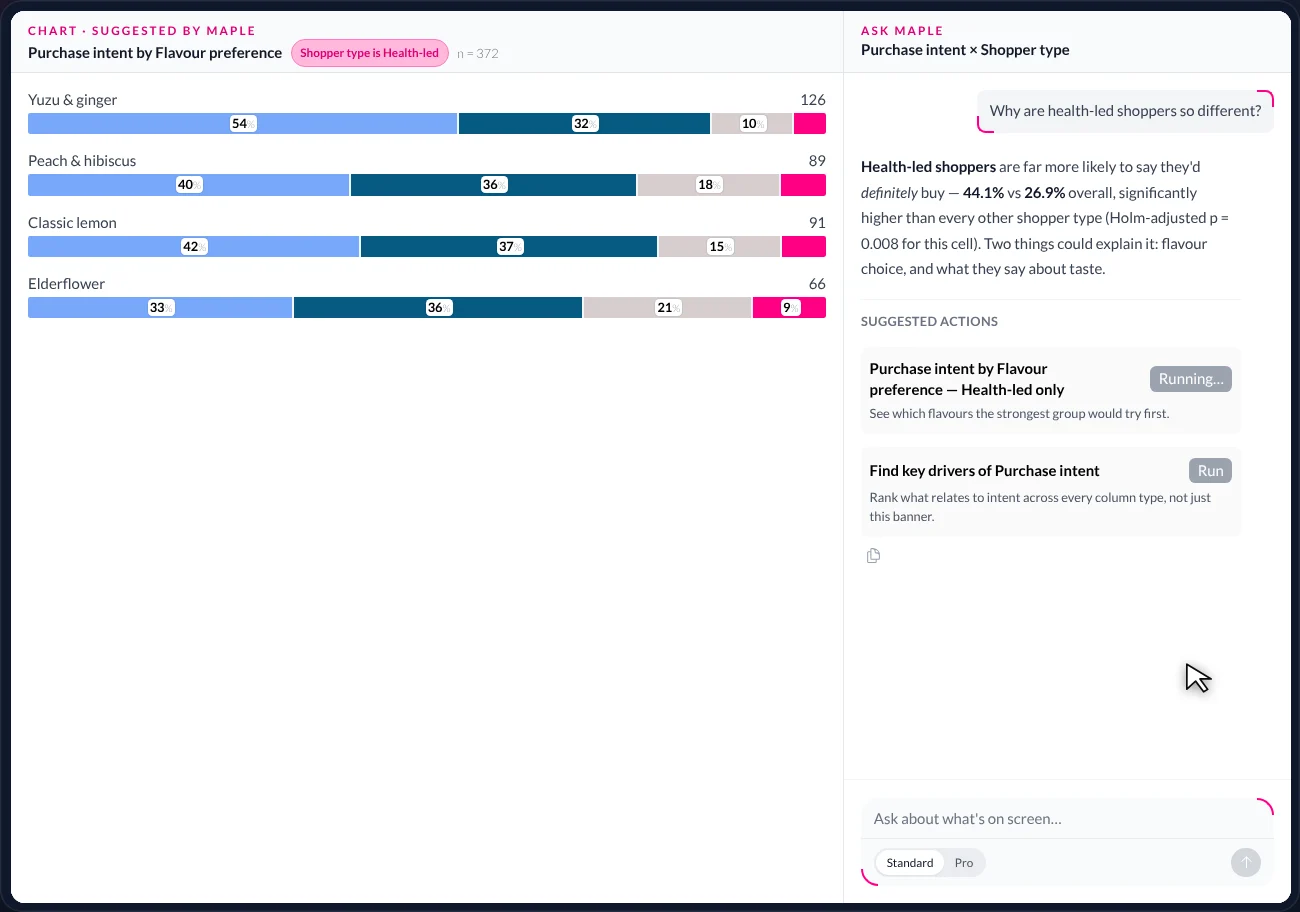
‘Chart · suggested by Maple’ with the filter chip ‘Shopper type is Health-led’. A live chart, not a picture of one. - 03
Code — what they wrote
“What do they say about taste?”
What Maple does: runs Analyze open-ended text on the 1,204 free-text taste comments, tagging each with the themes it expresses, and opens the result in the table view.
What you are seeing: each comment beside the theme chips applied to it, with the words that earned each theme highlighted; a side panel of how often “Too sweet” appears in each shopper type; and Maple’s reading — 21% overall, but only 9% among health-led shoppers, significantly lower.
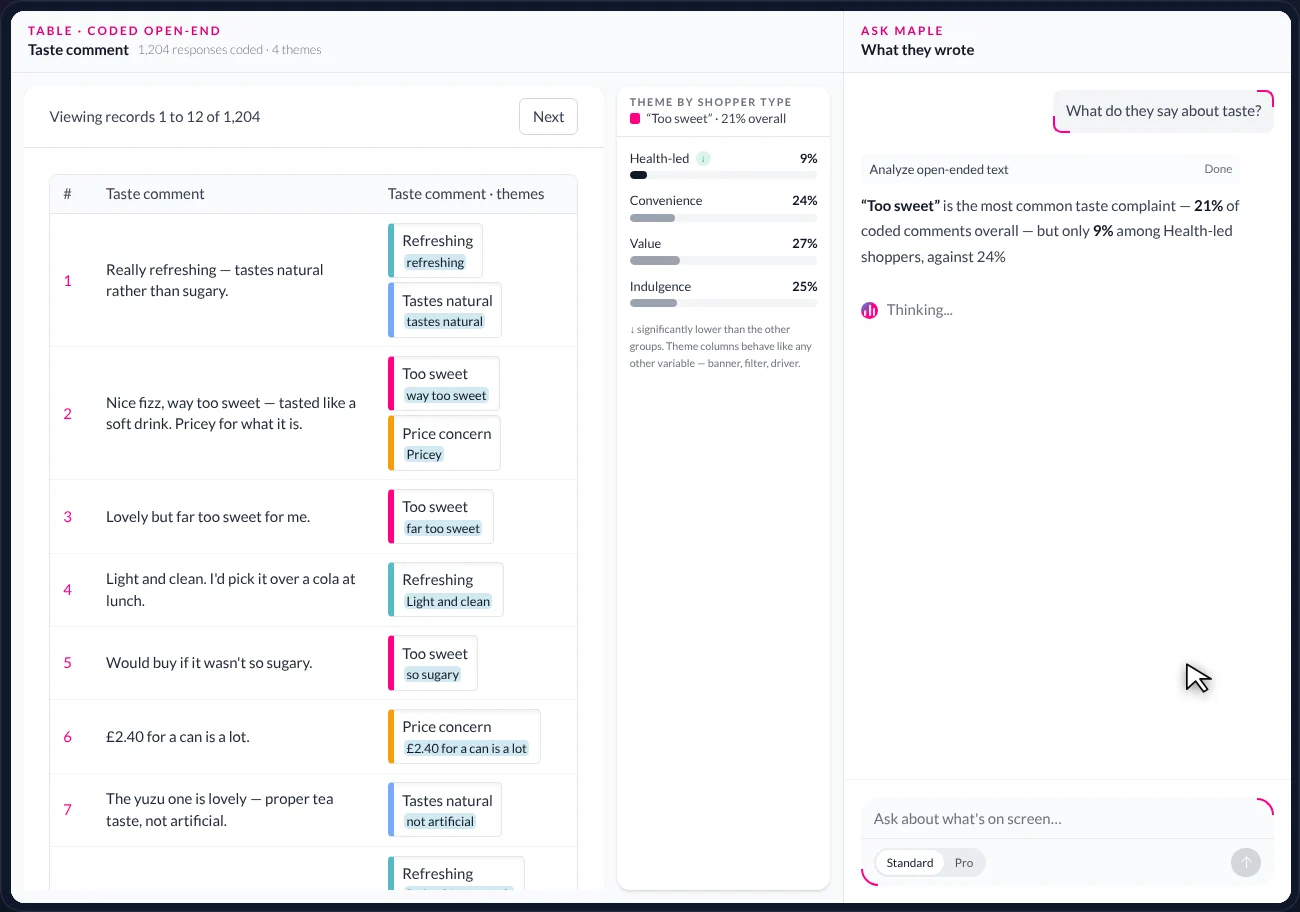
Comments beside their themes, incidence by shopper type — and Maple’s one-paragraph reading of them. - 04
Build — a new variable
“Create a ‘Likely to buy’ column: Definitely would buy + Probably would buy, everyone else ‘Not likely’.”
What you are seeing: two tool steps — Preview segmented column, then Create segmented column — and the answer: 672 respondents (55.8%) are likely, 532 are not. On the left, a new card, Likely to buy, has appeared at the top of the summary dashboard. It is now a column in the study, ready to be a banner or an outcome.
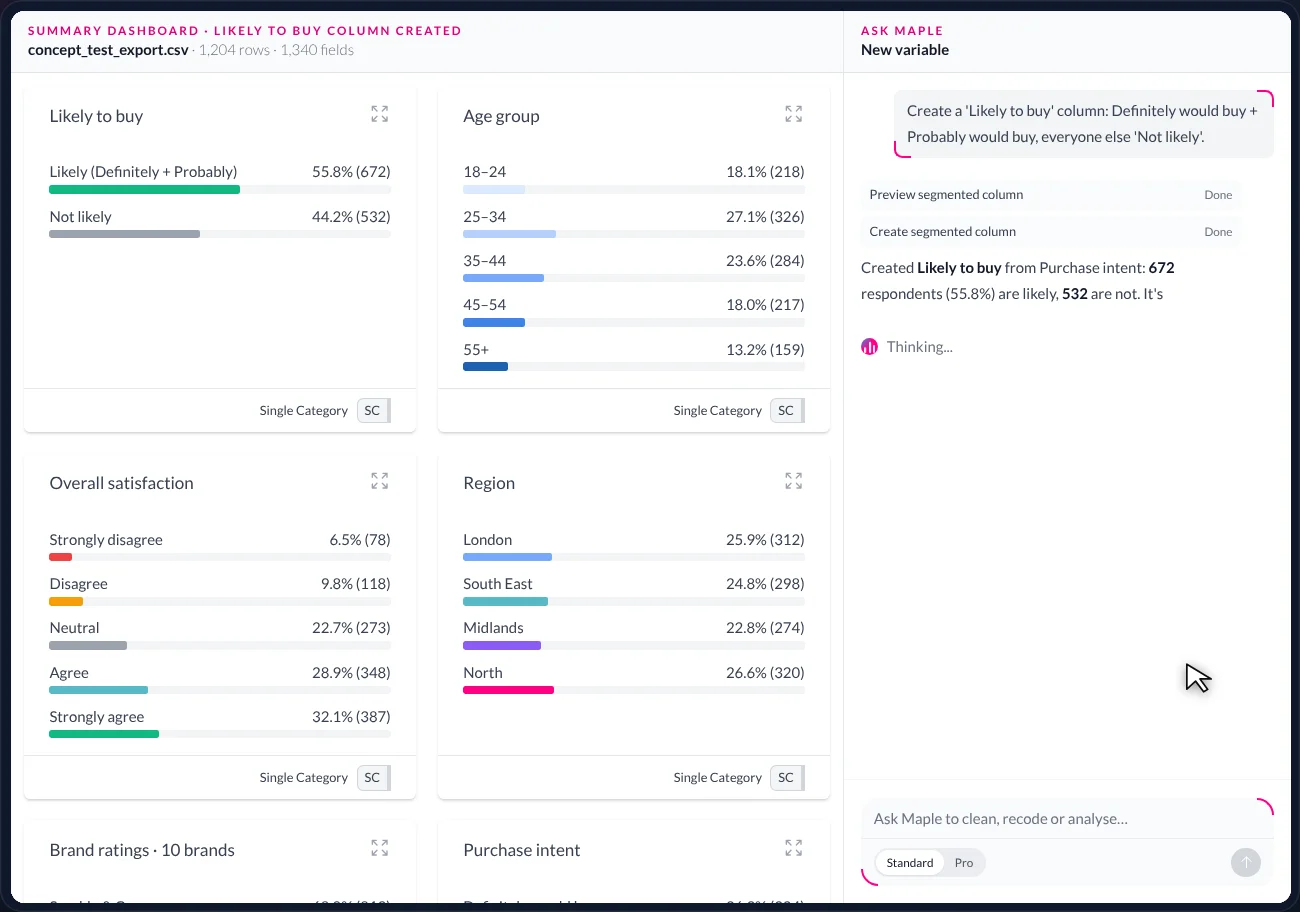
Likely to buy: 672 of 1,204. Built in the conversation, visible on the dashboard, usable everywhere. - 05
Segment — with diagnostics
“Is ‘health-led’ really one group?”
What Maple does: runs a segmentation — fits candidates for k = 2 through 6 — and opens the Model comparison and diagnostics table. It reports three groups in the best-fitting run (Flavour explorers, Price-first sceptics, Habit buyers), notes that a second run on ratings only prefers four with less certainty, and saves the best fit for the researcher to review against shopper type. The diagnostics are the real ones; how to read them is on the Audience groups page.
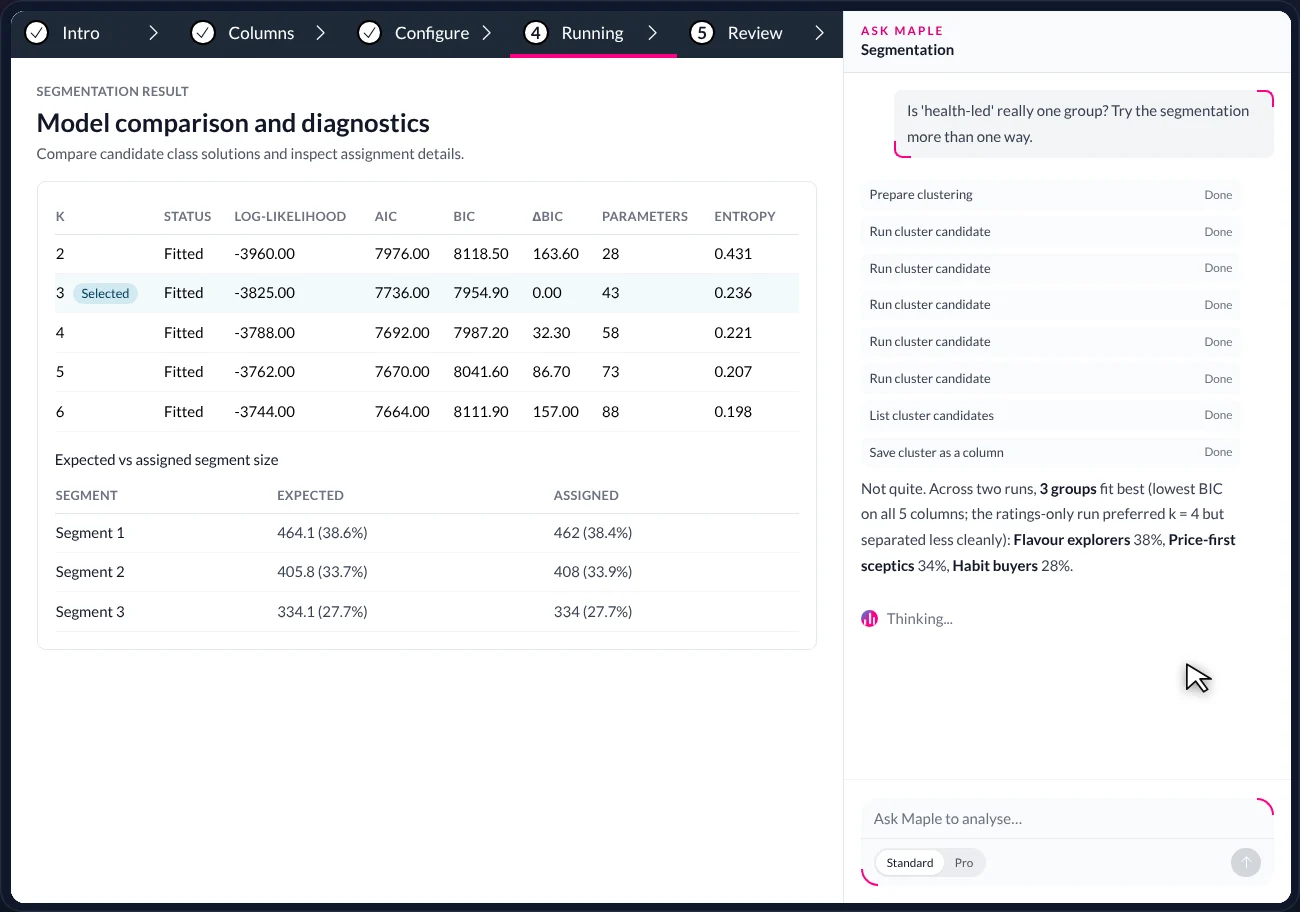
Real diagnostics, in the conversation. Maple reports what the two runs disagree about rather than smoothing it over. - 06
Draft — then you publish
“Save this as a finding for the client.”
What you are seeing: a story dashboard — AddMaple’s shareable report page — with a finding block Maple has drafted: a headline, a paragraph citing the numbers, three stat tiles (55.8%, 44.1%, 3 audience groups) and the filtered flavour chart. Maple’s message ends: “It’s a draft until you publish it — review the blocks, then Publish to create the share link.” The Publish button is the researcher’s.
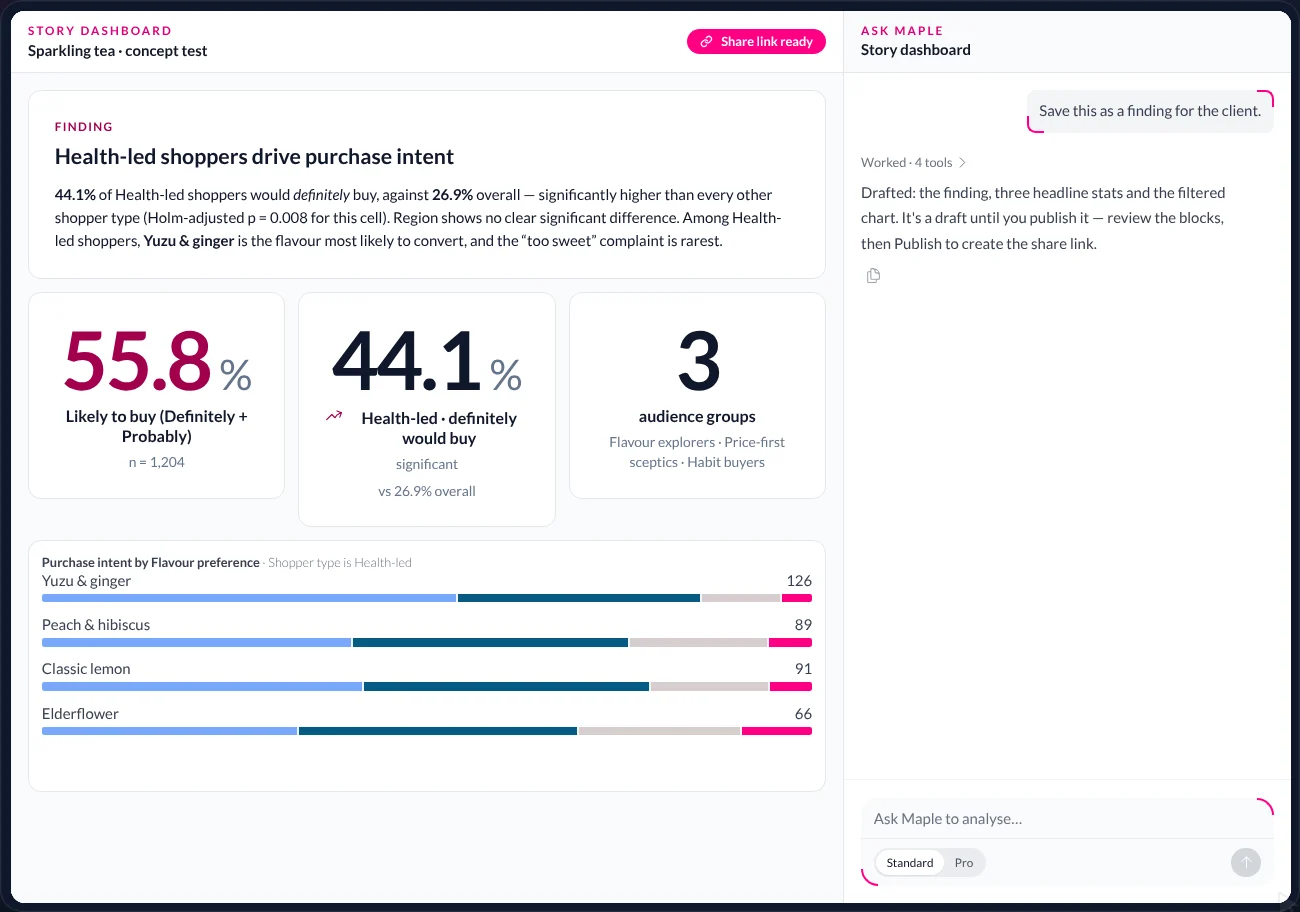
Drafted by Maple. Published by the researcher.
04 · The boundaries
What Maple does, and what stays with you.
Maple proposes
Suggested charts, cleaning batches, segment solutions, story drafts — all arrive as proposals you can see before they take effect.Every step is visible
Each tool call is shown as it runs: column detail, create segmented column, cluster run candidate, save finding. There is no hidden work.Every change is reversible
Variables, labels, groupings and story blocks are recorded changes on top of untouched source data. Undo any of them.You publish
Maple can draft a finding into a story. Only the researcher publishes it — and only after reading it.
05 · Words used on this page
A short glossary.
- Agent
- An AI assistant that can take actions in the product — run analyses, create columns, draft blocks — not only answer in text.
- Page context
- What Maple can see: the project’s columns, labels and filters, and the view currently on screen.
- Tool step
- One action Maple takes — ‘Analyze open-ended text’, ‘Create segmented column’ — shown in the panel as it runs.
- Suggested action
- An analysis Maple proposes, with a Run button. Nothing runs until you press it.
- Segmented column
- A new column built by grouping answers — Likely to buy = Definitely + Probably. The same thing as a NET.
- Story dashboard
- AddMaple’s shareable report: findings, stat tiles and charts the reader can filter. Maple can draft into it; the researcher publishes.
- Standard / Pro
- Which model answers. Pro switches to a more capable model for harder questions.
- MCP
- The open protocol through which external agents (Claude, Cursor and others) can use the same capabilities on a project you give them access to.
06 · Questions
What researchers ask us about Maple.
- What can Maple see?
- The project you are in: its columns, labels, filters and the view on screen. Ask about the table in front of you and it answers from that table. It does not see other projects or anything outside the study.
- Where do the numbers in its answers come from?
- From the same engine that draws the tables and charts, run with the same filters and base. Maple does not estimate numbers; it reads them from the computation it just ran, and the result opens beside the conversation so you can check it.
- Can it change my data?
- It can create variables, recode labels, group columns and draft story blocks — as recorded, reversible changes over untouched source data. It cannot publish a story, delete source data, or act outside the project.
- Do I have to use it?
- No. Everything Maple does is also available by hand — Table Studio, Key drivers, Audience groups, the story editor. Maple is the fast path to the same tools and the same results.
- Can I use it from Claude, Cursor or my own tools?
- The same capabilities are exposed through AddMaple’s MCP server, so an external agent can run the same analyses on a project you have given it access to — with the same boundaries.
Keep reading — the same study, other questions
Key drivers
Which answers relate most to the result?
Rank the questions most strongly related to an outcome — across scales, categories and coded open-ends.
Read →Audience groups
Who are you talking to?
Find the groups hiding in the answers, compare competing solutions, and keep the one you can explain.
Read →Clean data
From export to research-ready
Labels, scales, grids and duplicates fixed in minutes — every change visible and reversible.
Read →
AddMaple Mosaic
Ask it about your study.
Bring a project and a question you’d normally spend an afternoon on. We’ll ask Maple together and follow the investigation wherever it goes.