


The field guide · One study, end to end
AddMaple Mosaic, explained.What it is, and how one study moves through it.
AddMaple is a workspace for analysing survey data. You import a study and every question is charted, tabulated and ready to ask questions of; from there you clean it, cross-tabulate it, find what relates to the result you care about, find the audiences in it, and publish a story the reader can explore. Mosaic is the name of the release that brings those stages together. This page walks through all of them using one study, for people who would rather read than watch — and who may never have seen the product before.
New to AddMaple?
AddMaple is a workspace for analysing survey data: you import a study, and every question is charted, tabulated and ready to ask questions of. This page explains one part of it from scratch — what it is, when you’d use it, and how to read what it shows you.
Every image is the real product, rendered from one illustrative study — the Sparkling tea concept test, 1,204 respondents, 112 questions. Nothing is mocked up.
In short — 2 minutes
Or read the full walkthrough — about 22 minutes
- Clean — the raw export opens as a dashboard of every question; problems are flagged and fixed as a reviewable batch over untouched source data.
- Tabulate — every question broken down by a chosen group (a “banner”), tested for significance, ordered so the biggest differences come first, exported to Excel.
- Explain — pick the result you care about and rank every other question by how strongly it relates to it: key drivers.
- Group — find the audiences in the answers rather than the demographics; compare runs; keep the one you can defend.
- Connect — the groups, NETs and coded themes you create become columns that every table, chart and filter can use.
- Publish — a story dashboard the reader can filter, and ask questions of, without breaking it. The agent, Maple, helps at every stage.
- 1,204
- respondents in the example study
- 112
- questions · 1,340 columns
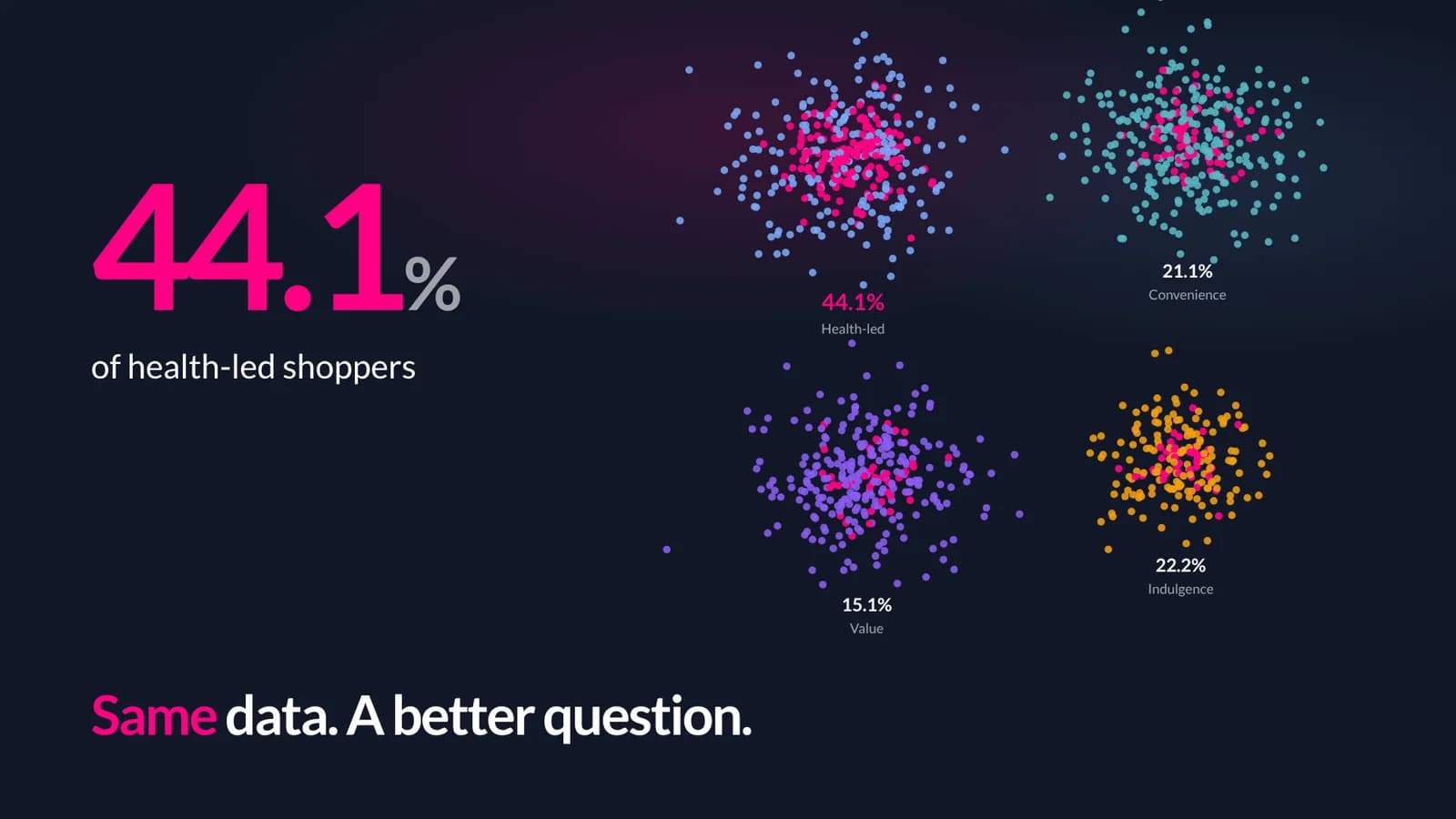
- 26.9 → 44.1%
- the number, then the better question
- 1
- engine behind every table, chart and answer
01 · What AddMaple is
One place for the whole job, from export to published story.
Survey analysis is usually several tools: one to clean the data, one for tables, a statistics package for anything advanced, a slide deck to report in — and a lot of copying between them. AddMaple does the whole job in one workspace, on one copy of the data, with one engine computing every number.
The problem
The insight you miss is the one you didn’t think to ask for. When every table has to be requested, every test run by hand and every finding re-keyed into a deck, most of the study is never looked at — and what is looked at can drift from the data it came from.
What it does
Charts every question the moment the data lands. Builds every table and tests every difference. Ranks what relates to the outcome. Finds the audiences. Keeps all of it connected to one source, and publishes it as a story the reader can explore. An agent, Maple, can do any of these steps when asked.
What you end up with
A study where nothing is hidden by default, where the cell that matters is on the first screen, and where every number in the report can be traced to the computation that produced it.
Who it is for
Researchers and insight teams who run surveys and have to report on them — agency or in-house — and the clients who read the results.What you bring
A survey export (CSV, Excel, SPSS or a platform export) and, ideally, its data map. Nothing has to be prepared first.How this page works
One illustrative study moves through six stages below. Each stage names the feature, says what it is for, shows the real screen, and links to a deep dive that explains it from scratch.
02 · The example study
A concept test for a sparkling tea. 1,204 people. 112 questions.
Every page in this series uses the same study: a concept test for a new sparkling tea — 1,204 respondents, 112 questions, 1,340 columns once grids and open-ends are counted. The topline says 26.9% would definitely buy. Somewhere in those columns is the reason some people say yes.

Below, the study moves through AddMaple in the order a researcher actually works. Each stage has its own deep dive; this page is the map.
01 · Clean
From export to research-ready, with every change on the record.
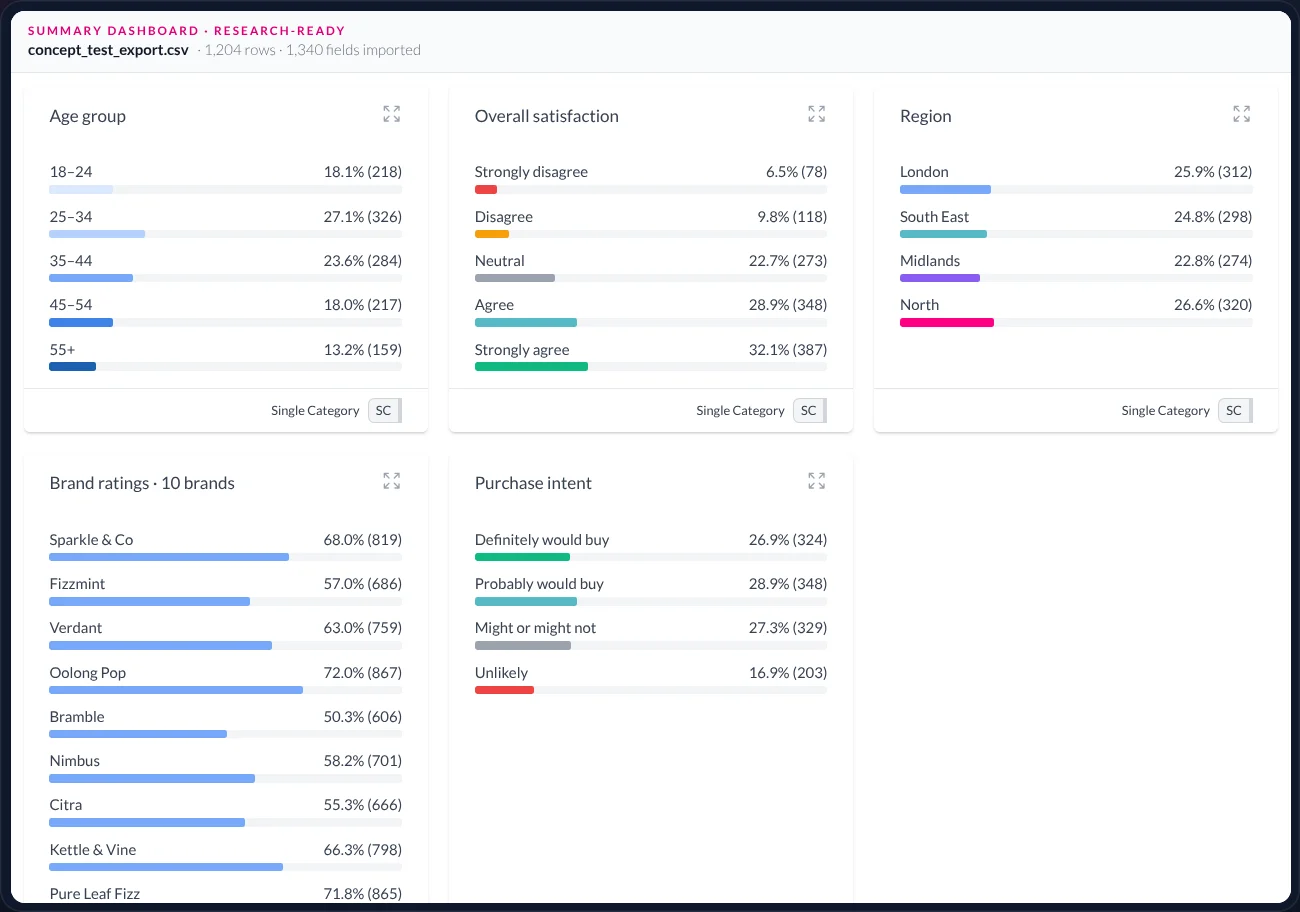
What the feature is: the import stage. AddMaple opens the raw file as a summary dashboard — one card per question, each already charted — flags the fields that need attention, and applies fixes as recorded changes over the untouched source.
In the study: the file arrives with codes instead of labels, a reversed scale, a brand grid split into ten columns and two versions of the purchase-intent question. Maple reads the data map and proposes six changes as a batch; the original data is never touched.
02 · Tabulate
Every table in the study, with the differences that matter first.
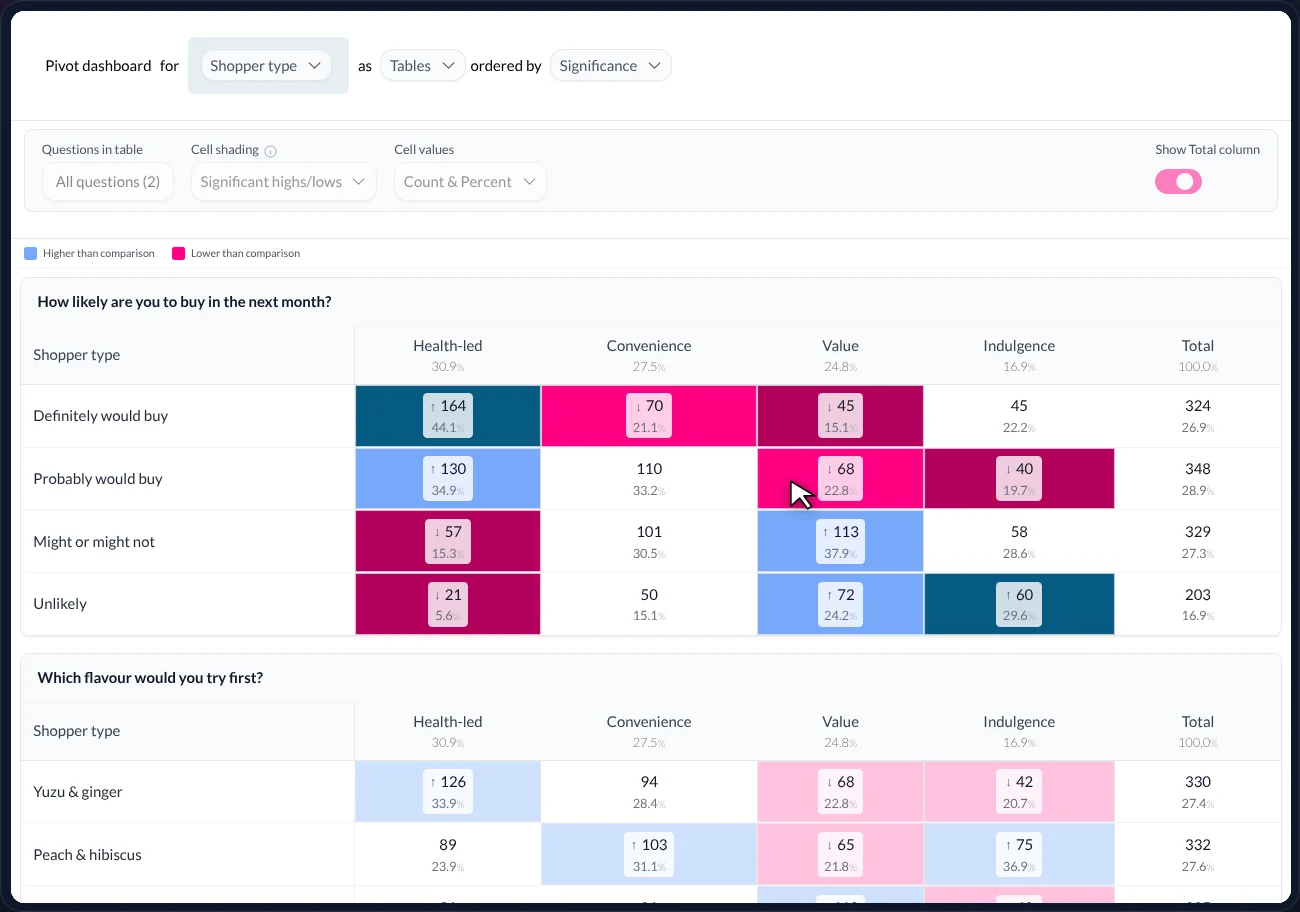
What the feature is: Table Studio — crosstabs for every question, broken down by a grouping you choose (the banner), each cell tested for statistical significance, the tables ordered so those with the largest differences come first, and the lot exported as a formatted Excel workbook.
In the study: one sentence — Pivot dashboard for Shopper type, as Tables, ordered by Significance — and the 112 questions re-sort. With shading on, the eye goes straight to one cell: health-led shoppers who would definitely buy.
- 44.1%
- Health-led · Definitely would buy
- 26.9%
- All respondents
- 336
- tables, one workbook
164 of 372. Significantly higher than every other type (adjusted p = 0.008).
324 of 1,204.
112 questions × 3 banners, exported formatted and branded.
03 · Explain
Which answers relate most to the result — as priorities, not a verdict.
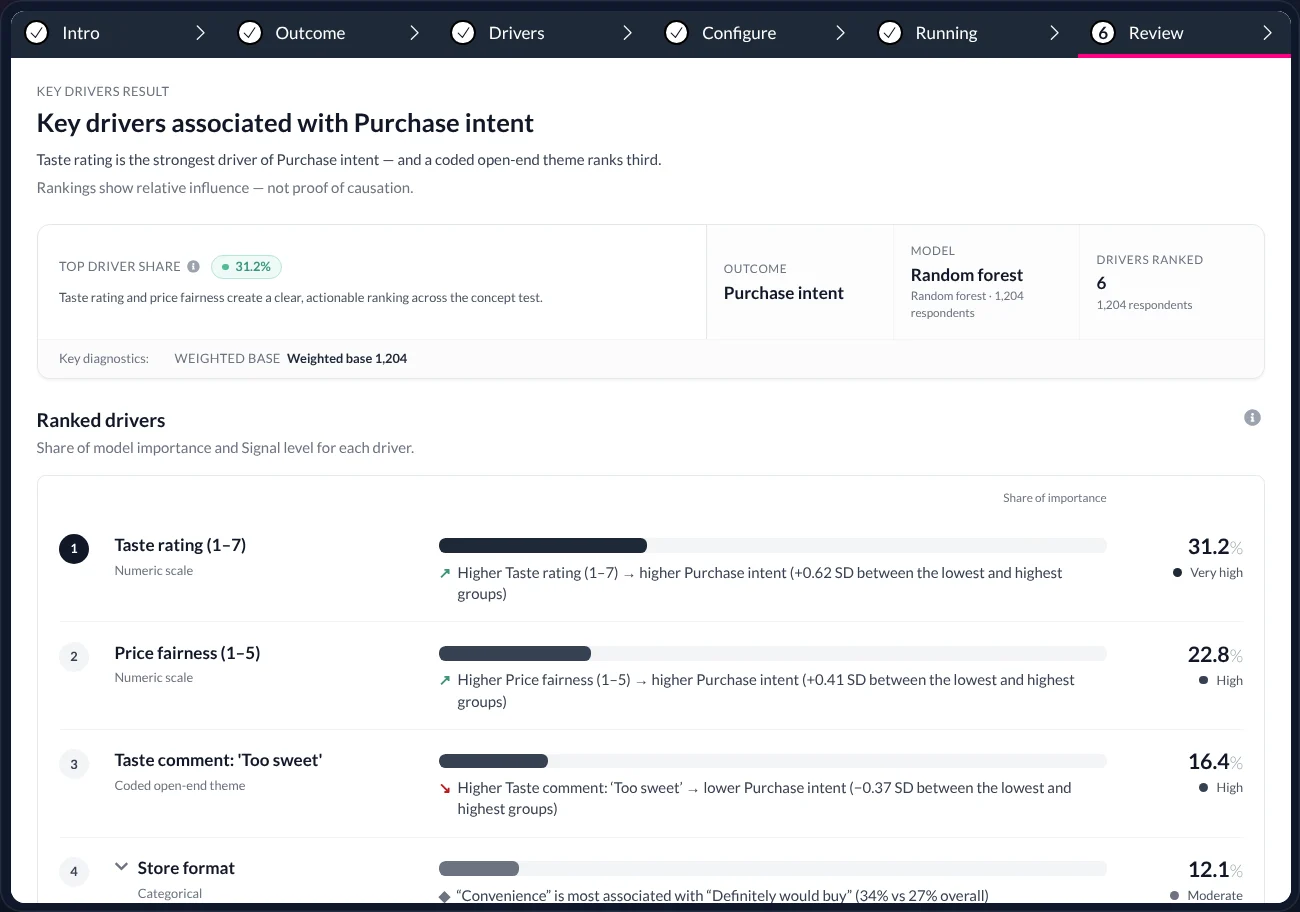
What the feature is: Key drivers. Pick the result you care about (the outcome) and AddMaple fits one model that ranks every other question by how strongly it relates to it, with the direction of each relationship written in words. Relationships, not causes — a to-do list for the analysis.
In the study: “What drives purchase intent?” Three priorities to investigate, ranked by their relationship with the outcome: taste rating (31.2% of the model’s importance), price fairness (22.8%), and a theme coded from the free-text comments — ‘Too sweet’ (16.4%), which moves the other way.
04 · Group
Who are you talking to?
What the feature is: Audience groups (segmentation). Instead of cutting the sample by age or region, AddMaple groups respondents by how they answered the questions you choose, tries every number of groups from 2 to 6, and proposes the best fit — with the diagnostics to judge it and a second run to compare.
In the study: grouped on taste, price, flavour, store and intent, three audiences appear. A second run without intent prefers four, with less certainty. The engine marks its proposal; the researcher decides.
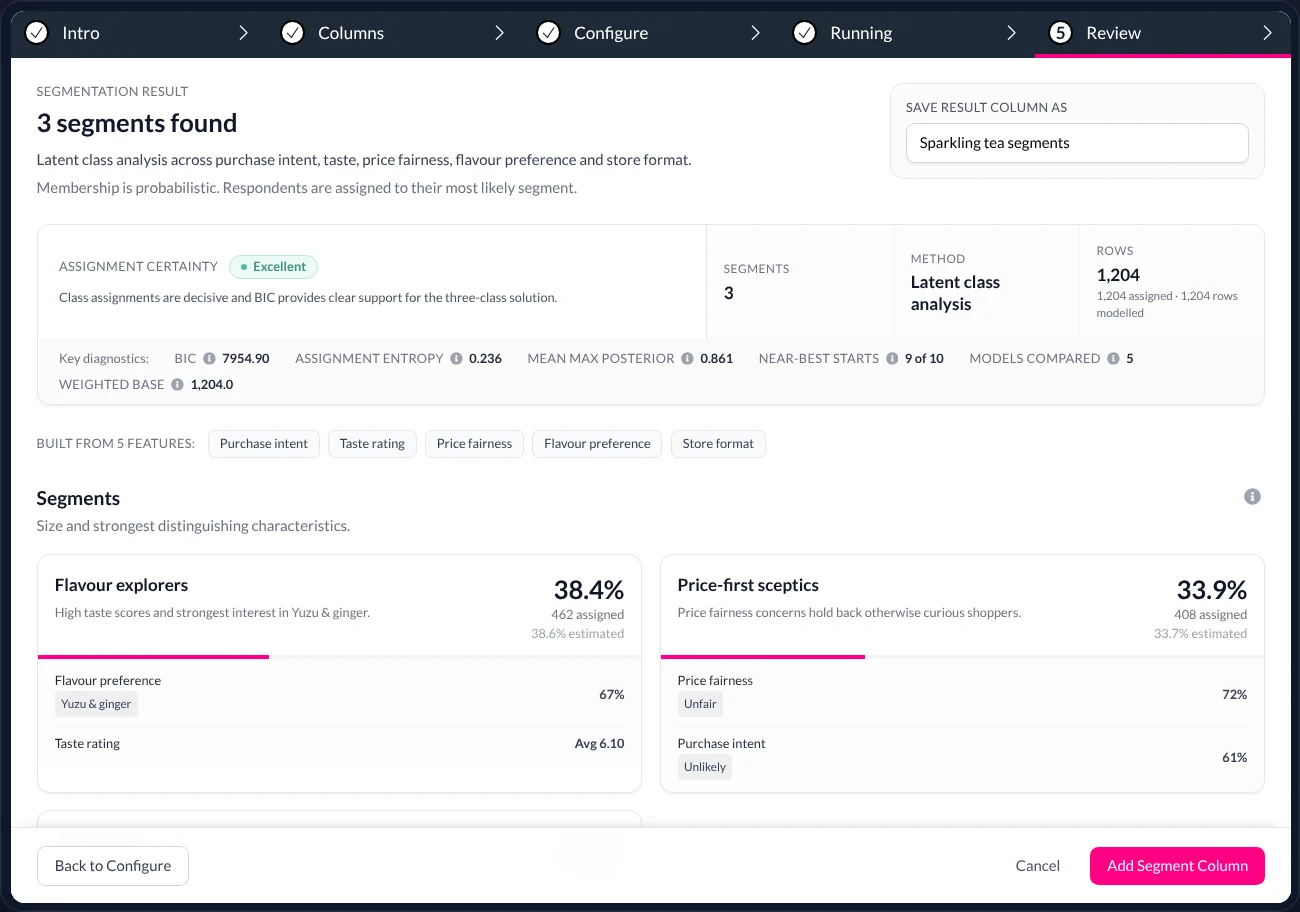
- 38.4%
- Flavour explorers · 462
- 33.9%
- Price-first sceptics · 408
- 27.7%
- Habit buyers · 334
Yuzu & ginger, high taste rating. They shape the message.
Price ‘Unfair’, intent ‘Unlikely’. They raise a pricing question.
Usual store, Classic lemon. They point at distribution.
05 · Connect
Everything you make becomes part of the study.
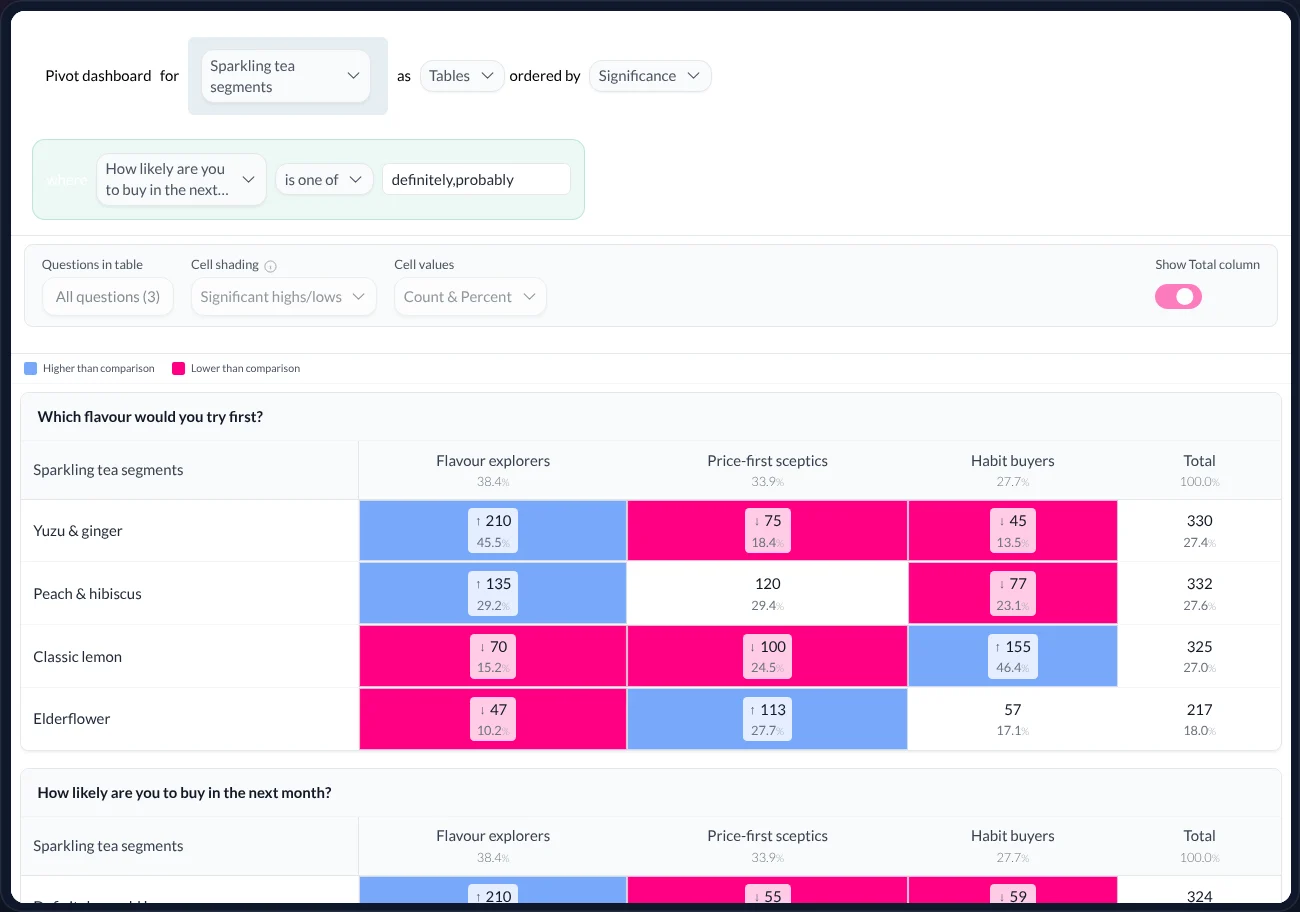
What this means: in AddMaple a column is any variable — a question, a NET you built, a theme coded from open text, a saved audience group. New columns are first-class: they can be a banner in every table, a filter on every chart, an outcome for key drivers, a lens in the published story.
In the study: keep the three groups and they become a column. Put it on the banner, add a filter in the sentence bar — How likely are you to buy… is one of Definitely, Probably — and the whole dashboard re-lands on the new base. Nothing is exported, rebuilt or pasted.
One engine
Tables, charts, drivers, groups and Maple’s answers are computed by the same engine with the same filters and base. They cannot disagree.Columns travel
A NET, a derived variable, a coded theme or a saved audience group is a column everywhere — banner, filter, outcome, lens.Changes are recorded
Cleaning, variables and groupings are reversible layers over untouched source data.
06 · Publish
A story the reader can explore without breaking it.
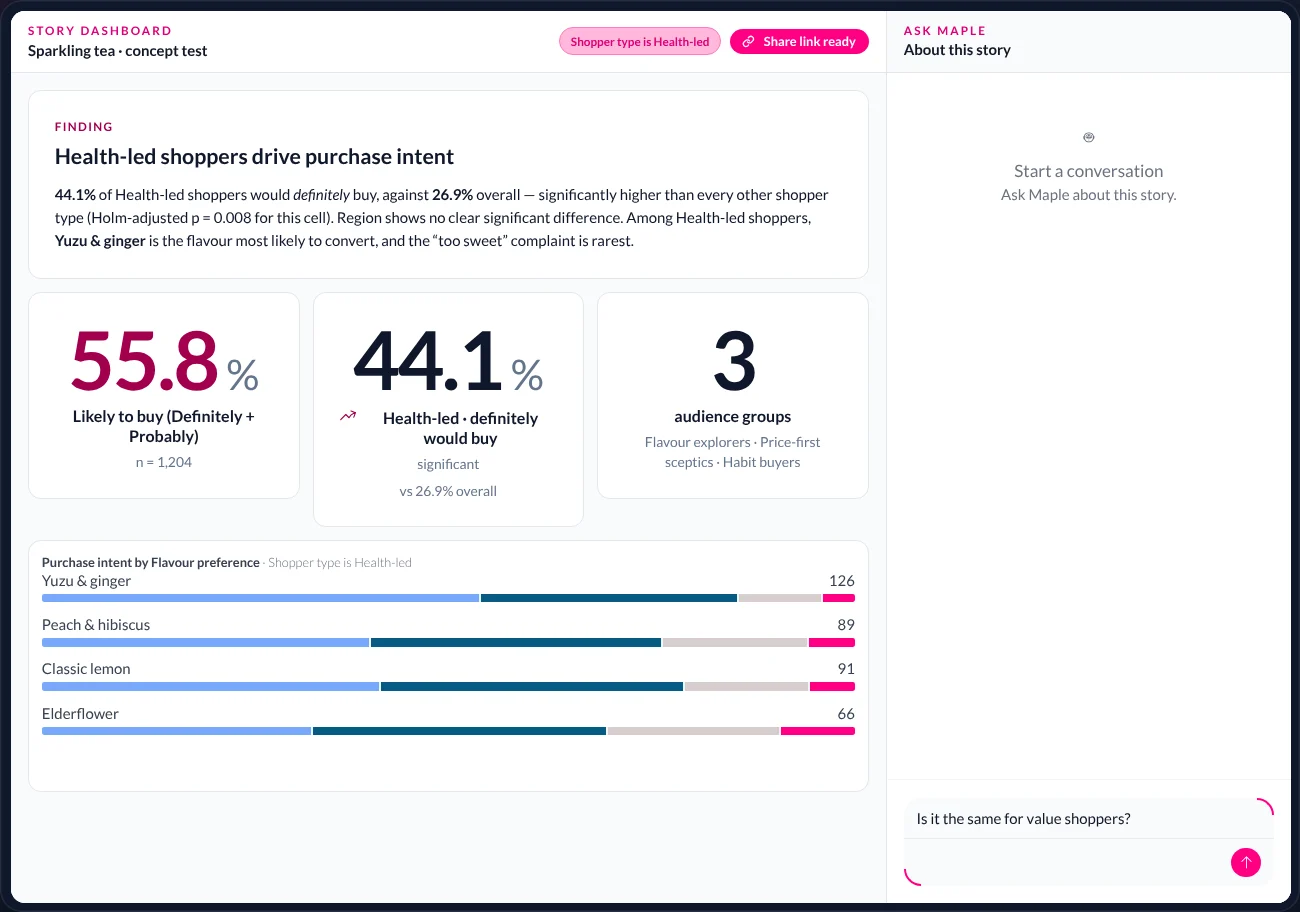
What the feature is: a story dashboard — AddMaple’s shareable report page. Findings, stat tiles and charts, published at a link. Unlike a slide, the reader can filter it and the evidence follows; and the reader can ask Maple a question inside it and get an answer from the same data, with the same rules.
In the study: the finding becomes a story — a headline, three stats, the chart. A reader filters to health-led shoppers. A reader asks, “Is it the same for value shoppers?” The study underneath does not change; only the view does.
09 · Throughout · Ask Maple
The agent that can do any of the above when asked.
What it is: Maple is the AI agent built into AddMaple. It sits beside whatever you are looking at, reads it, and can run the stages above on request — explain a table, open a chart, code open-ends, build a variable, fit a segmentation, draft a finding. Every step is visible and reversible. Publishing stays with you.
10 · Why it holds together
Rules the whole product follows.
Everything is charted
Every question, the moment the data lands. You never have to ask for a chart to find out there was something in it.Differences are ranked
Order by significance across the whole study, so the cell that matters is on the first screen, not the fortieth.Relationships are relationships
Drivers are priorities to investigate, ranked by their relationship with the outcome — never presented as causes.Non-significance is stated
“No clear significant difference” is a finding. It is never shown as nothing.The engine proposes; you decide
Best-fitting candidates, suggested charts, draft findings — proposals, with the diagnostics, for the researcher to evaluate.Source is untouched
Every cleaning step, variable and grouping is a recorded, reversible change over the original data.
11 · Words used across these pages
A short glossary.
- Column
- Any variable in the study: a question, one option of a multiple-choice question, a NET, a coded theme, a saved audience group.
- Summary dashboard
- The opening view: one card per question, each already charted.
- Pivot dashboard
- The whole study broken down by one banner — every question as a table or chart.
- Banner
- The grouping used for the columns of a crosstab — shopper type, age, a saved audience group.
- NET
- An answer that groups others — Likely to buy = Definitely + Probably.
- Coded open-end
- A free-text question whose answers have been tagged with themes; each theme becomes a column.
- Story dashboard
- The shareable report page: findings, stats and charts the reader can filter and question.
- Maple
- The AI agent inside AddMaple. It proposes and performs; the researcher publishes.
Keep reading — the same study, other questions
Clean data
From export to research-ready
Labels, scales, grids and duplicates fixed in minutes — every change visible and reversible.
Read →Table Studio
Every table, and what they mean
Crosstabs for the whole study, ordered by significance, shaded where it matters, exported as a branded workbook.
Read →Key drivers
Which answers relate most to the result?
Rank the questions most strongly related to an outcome — across scales, categories and coded open-ends.
Read →
AddMaple Mosaic
Every signal. One picture.
See Mosaic on your own study — from the export to the published story — in one session.