


Clean data · Mosaic in depth
Clean dataFrom a raw survey export to a study you can analyse — with every change on the record.
Survey data never arrives ready. Answers are stored as codes instead of labels, scales run the wrong way, one question is split across ten columns, and the same question appears twice. Fixing that is the first job in every project, and the least visible. In AddMaple, the export opens as a dashboard straight away, the problems are flagged, and the fixes are proposed as a batch you can review — while the original file is never touched.
New to AddMaple?
AddMaple is a workspace for analysing survey data: you import a study, and every question is charted, tabulated and ready to ask questions of. This page explains one part of it from scratch — what it is, when you’d use it, and how to read what it shows you.
Every image is the real product, rendered from one illustrative study — the Sparkling tea concept test, 1,204 respondents, 112 questions. Nothing is mocked up.
Start with the whole study →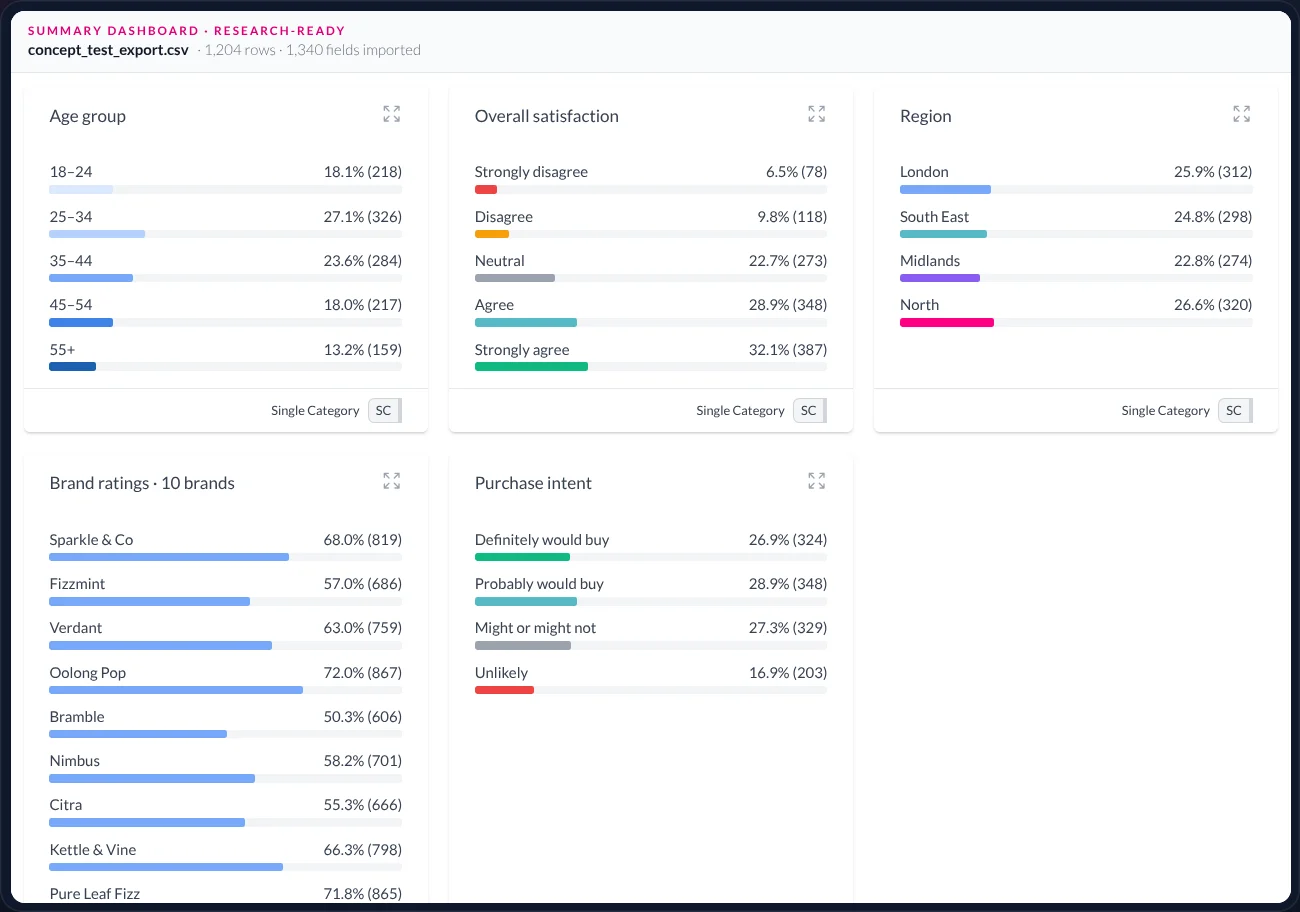
In short — 1 minute
Or read the full walkthrough — about 16 minutes
- What it is. The import-and-tidy stage: AddMaple reads the export and the data map, shows every question as a chart, flags the fields that need attention, and applies fixes as recorded, reversible changes.
- What problem it solves. Codes without labels, reversed scales, exploded grids and duplicate questions cost a day or a weekend per study — and when a client asks “what did you change?”, the honest answer is often a shrug.
- What you do. Import the file with its data map. Ask Maple to clean and recode, or make the changes by hand. Read the list of what was done.
- What you get. A research-ready study where every column is typed and labelled, a written list of every change, and the ability to undo any of them. Everything downstream — tables, drivers, groups, the story — reads the clean version.
- 1,340
- fields in the export · 1,204 rows
- 14
- fields flagged for review on import
- 6
- reviewable changes in the cleaning batch
- 10 → 1
- brand-grid columns grouped into one question
01 · What it is
The stage before analysis, made visible.
Cleaning means making the data say what the questionnaire meant: labels instead of codes, scales in the right order, one question per question. It is unglamorous and it is where mistakes hide. This is how AddMaple handles it.
The problem
Every export has its own list of defects, and on a 1,340-field study the list is long enough that fixes get missed or applied inconsistently. Done in a spreadsheet, the cleaning overwrites the data, so there is no record of what changed and no way back if a fix was wrong.
What it does
Opens the export as a dashboard of every question, flags fields that look like unlabelled codes, reversed scales, duplicates, grid fragments or admin columns, and reads the study’s data map for the labels. Fixes — by you or by the agent — are applied as a layer of recorded changes over the untouched source.
What you end up with
A study where every column is typed and labelled, a written list of every change with before and after, and undo for any of them. Because every other feature reads this clean layer, a label fixed here is fixed in every table, chart and story.
Use it when…
Any study arrives — this is the first stage of every project. It matters most for large exports, repeated waves, and anything a client will audit.Bring…
The export (CSV, Excel, SPSS .sav with its labels, or a survey-platform export) and, if you have it, the data map — the spreadsheet listing each question’s codes and labels.The rule…
The source file is read, never written. Cleaning is a set of changes on top of it, each one named, each one reversible — individually or as a batch.
02 · The example
The sparkling tea export lands Friday at 17:02.
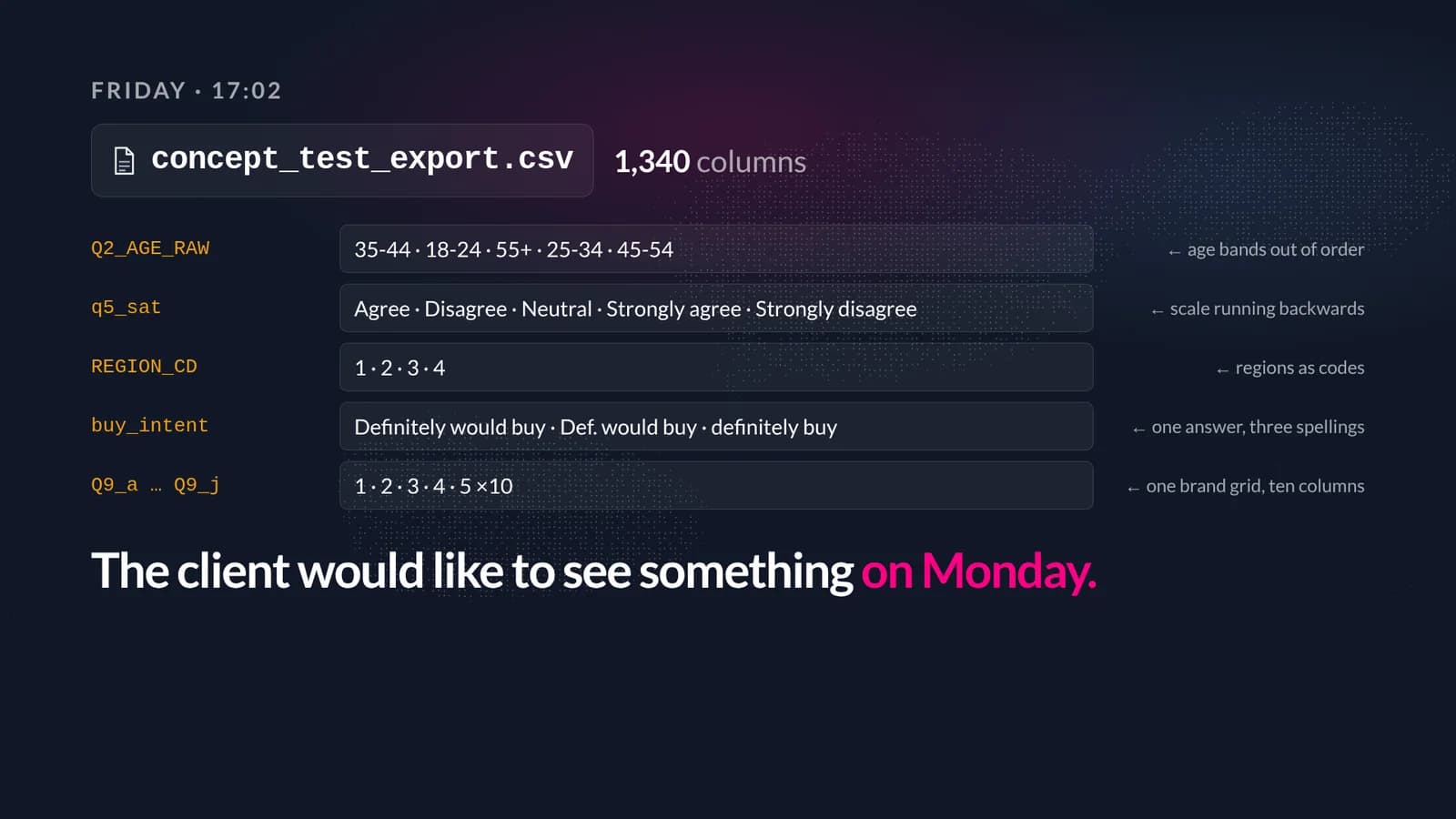
The illustrative study throughout this series: a concept test for a sparkling tea, 1,204 respondents, 112 questions — 1,340 fields once grids and open-ends are counted. The deck is due Monday. Five of the defects in the raw file, quoted as they arrive:
Q2_AGE_RAW
Age bands stored as 1–5. Which code is which is only in the data map.q5_sat
The satisfaction scale is stored in reverse, so every ‘agree’ chart would read backwards.REGION_CD
Region as a code — 1, 2, 3, 4 — with the labels in a spreadsheet nobody has opened.buy_intent
Eight purchase-intent answers where the questionnaire had four: two export runs, two label sets.Q9_a … Q9_j
One brand-rating grid, ten columns — which means ten separate charts for a single question.
03 · Step by step
Import, ask, review.
Cleaning in AddMaple happens on the summary dashboard, with the agent (Maple) in a panel beside it. Here is each step, with what is on screen.
- 01
Import, with the data map alongside
What you are seeing: the summary dashboard the moment the file opens. The header reads concept_test_export.csv · 1,204 rows · 1,340 fields imported, with a yellow tag: 14 fields flagged for review. Every field is already a card with a chart — including the broken ones, which is how you can see they are broken.
The data map,
concept_test_datamap.xlsx, is attached to the conversation so Maple can read the code lists from it. - 02
Ask Maple to clean and recode
What you are seeing: the Ask Maple panel on the right, with the request typed in plain English: “Clean this up: order the scales and age bands, label the region codes from the data map, group the brand grid, merge the duplicate purchase-intent answers, and hide the admin columns.”
Under it, the list of tool steps as they run — Column detail, Update column categories, Group columns — each marked Done as it completes. On the left, the dashboard updates as each change lands: the ten brand columns are already one card, Brand ratings · 10 brands.
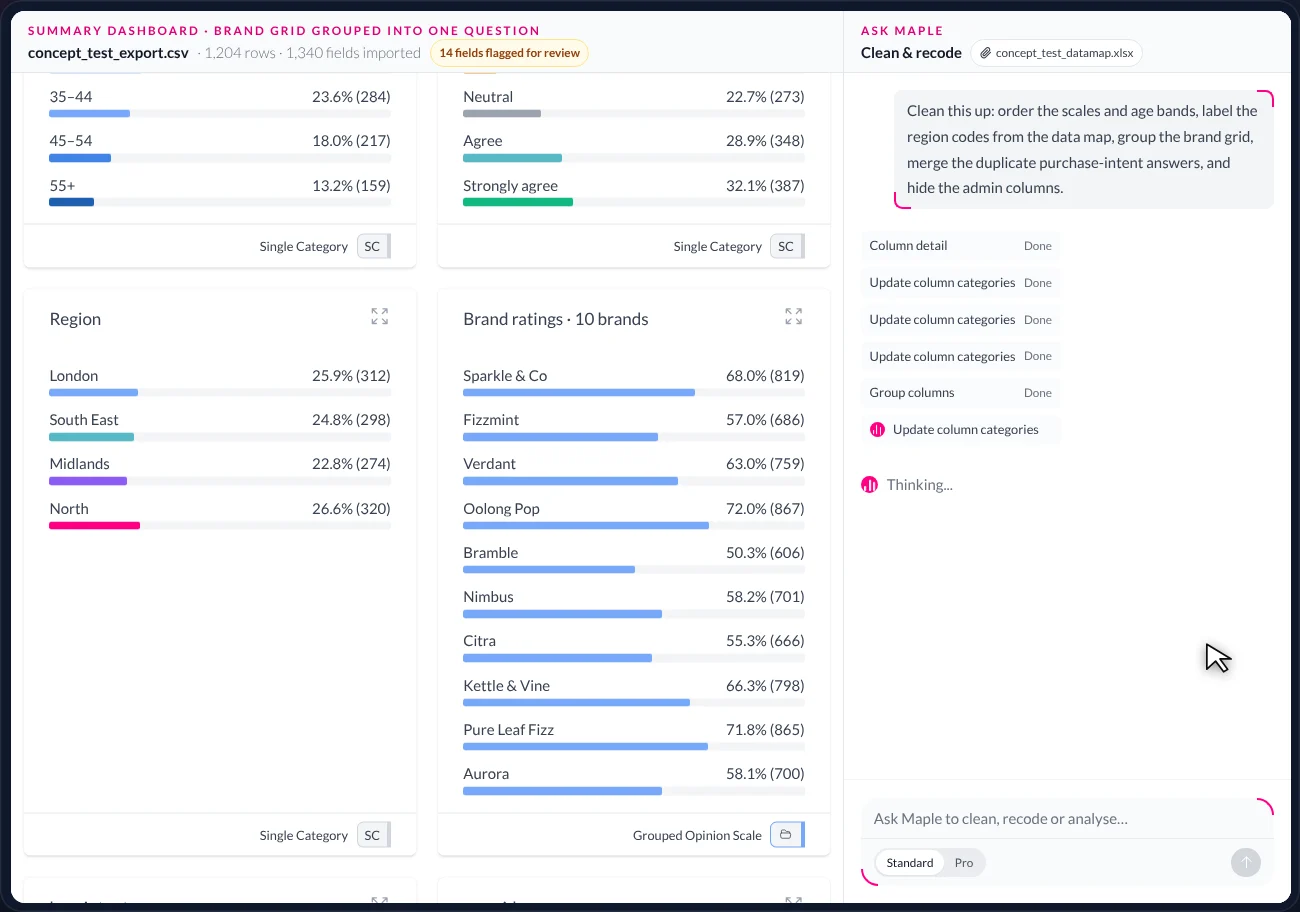
Maple working through the flagged columns, one visible step at a time. The dashboard on the left updates as each change is applied. - 03
Read the list of changes
What you are seeing: Maple’s answer when it finishes — “Done, as a batch of 6 reviewable changes” — followed by the list: two scales ordered, Region labelled from
concept_test_datamap.xlsx, the Q9 brand grid grouped into one question, purchase intent merged from eight answers to four, two admin fields hidden (not deleted).On the dashboard, Age group now runs 18–24 to 55+, Region reads London / South East / Midlands / North, and the header has changed to Admin columns hidden.
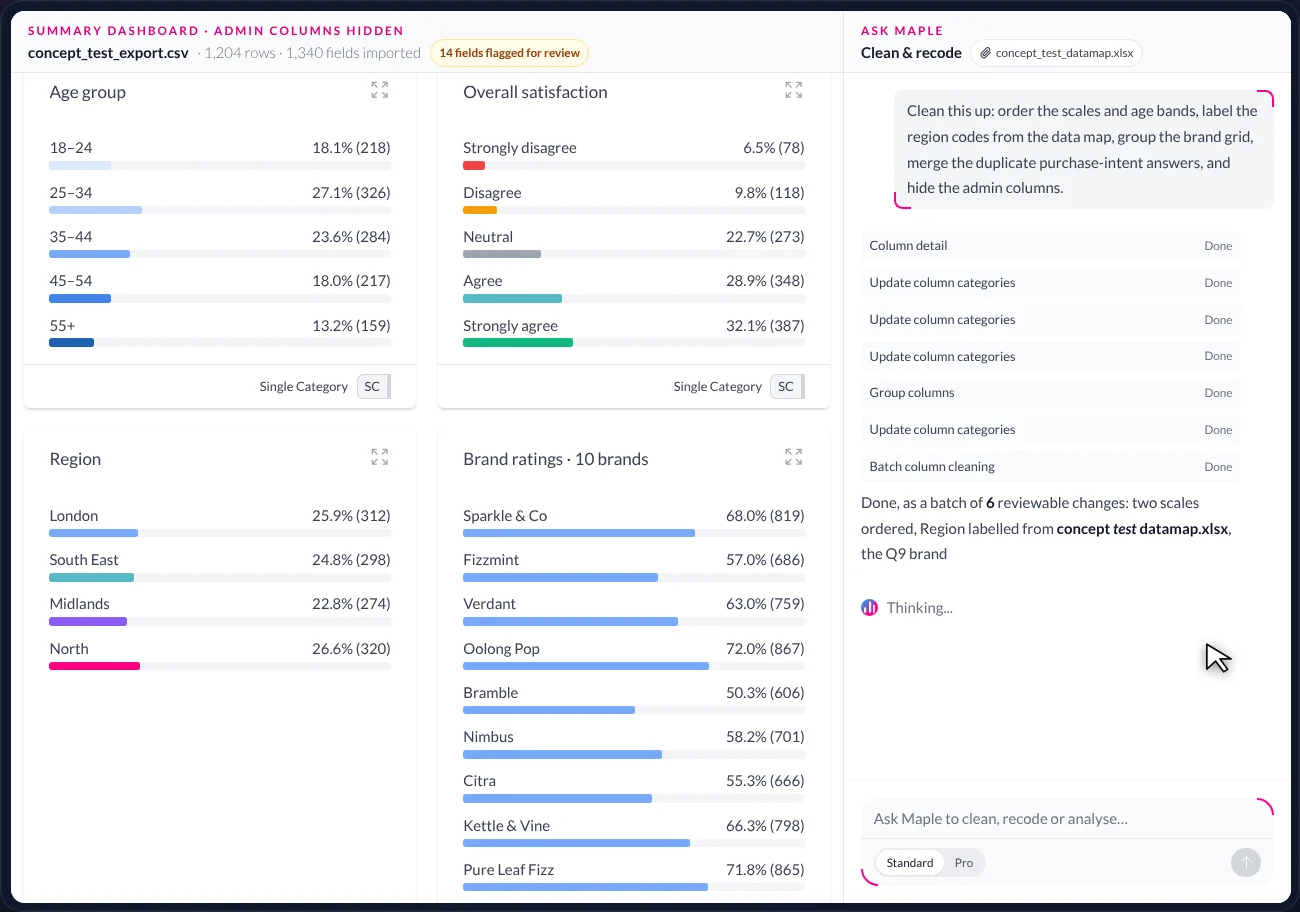
The batch, written out. Each change is named; each one can be undone.
04 · How to read the result
The research-ready dashboard, card by card.
This is the dashboard the analysis starts from. Here is what each part of it is.
Summary dashboard · research-ready. 1,204 rows · 1,340 fields imported.
- Header
- The file name, the row and field counts, and the current state — here ‘Research-ready’. Earlier it read ‘14 fields flagged for review’.
- One card per question
- Each card is one column in the data, shown as a chart with the count and percentage for every answer. The chart type follows the column type.
- Answer order
- Age group runs 18–24 → 55+ and Overall satisfaction runs Strongly disagree → Strongly agree. Before cleaning both were stored out of order; a reversed scale makes every chart read backwards.
- Labels from the data map
- Region shows London, South East, Midlands, North rather than 1, 2, 3, 4. The labels came from the study’s own data map, not a guess — and the change record says so.
- A grouped question
- Brand ratings · 10 brands is one card where there were ten (Q9_a to Q9_j). The footer badge reads ‘Grouped Opinion Scale’. It can now be one chart and one banner, instead of ten orphans.
- Merged answers
- Purchase intent has four answers — Definitely, Probably, Might or might not, Unlikely — not eight. Two export runs had produced two label sets; they are merged, and the merge is reversible.
- Column type badge
- The small badge on each card — Single Category (SC), Opinion Scale (OS) and so on — is the column’s type. Every downstream feature uses it to choose the right chart, test or model.
- What you don’t see
- The two admin columns (resp_id and start_ts — respondent ID and start timestamp) are hidden, not deleted. The source file is unchanged; everything on this screen is a layer on top of it.
05 · The safeguard
The original data is never touched.
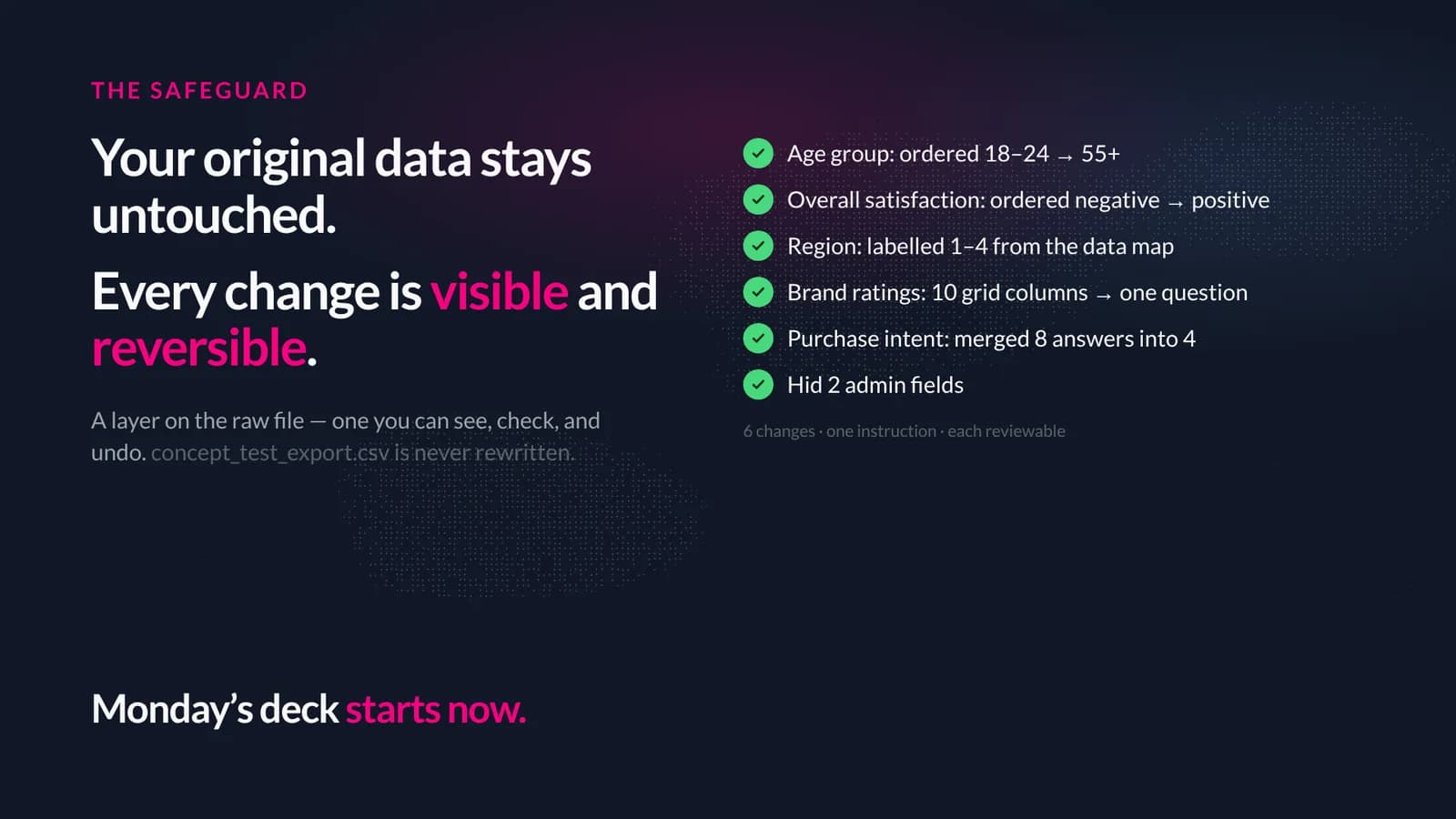
Cleaning in AddMaple is a layer over the source, not an edit to it. Every change is visible on the dashboard and can be undone — individually, or as the whole batch.
Source stays source
The imported file is read, never written. Every label, order and grouping is a recorded change on top of it.Every change is listed
What changed, on which column, from what to what. The list is the audit trail a client can read.Everything reverses
Undo one change or the whole batch. Hidden columns come back; merged categories split again.The data map is evidence
Labels come from the study’s own data map, not from a guess. Where a label is applied ‘from data map’, the step says so.
06 · Why it matters later
Everything else reads the clean version.
Because every column is typed and labelled here, everything downstream — Table Studio, Key drivers, Audience groups, Maple’s answers, the published story — reads this version. Fix a label here and it is fixed everywhere.
The grouped brand grid is the quiet win: one question with ten brands, shown as one chart, usable as one banner, instead of ten columns nobody will tabulate.
07 · Words used on this page
A short glossary.
- Export
- The raw data file from the survey platform — one row per respondent, one column per field.
- Data map
- The spreadsheet that lists, for each question, which stored code means which answer. Also called a codebook.
- Field / column
- One variable in the data. A questionnaire question may produce several — a grid produces one per item.
- Summary dashboard
- AddMaple’s opening view of a study: one card per question, each already charted.
- Flagged for review
- A field whose values look like unlabelled codes, a reversed scale, a duplicate, a grid fragment or an admin column. A prompt to look, not an automatic edit.
- Grouped question
- Several columns that were really one question (a grid) treated as one — one chart, one banner.
- Recode / merge
- Changing how answers are labelled or combined — eight intent labels merged to four, for instance — as a recorded, reversible change.
- Hidden column
- A field removed from view (an admin column, say) but not from the data. It can be shown again.
08 · Questions
What researchers ask us about cleaning.
- What formats can I bring?
- CSV and Excel exports, SPSS .sav with its labels, and common survey-platform exports. Attach the data map as a spreadsheet and Maple will read the code lists from it.
- Does Maple change anything without asking?
- It proposes changes as a batch and applies them as recorded, reversible steps. You see the list before and after; you can undo any step. The underlying file is never modified.
- What counts as a ‘flagged’ field?
- Fields whose values look like codes without labels, scales that appear reversed or inconsistent, probable duplicates, grid fragments that belong to one question, and admin or system columns. The flag is a prompt to look, not an automatic edit.
- Can I do this without the agent?
- Yes. Every change Maple can make — labels, order, grouping, merging, hiding — is available by hand in the summary dashboard. Maple is the fast path; the tools are the same.
- What if a fix was wrong?
- Undo it. Each change is independent; reversing one does not disturb the others. If a whole batch was misguided, reverse the batch. The source file was never altered, so there is always a way back.
Keep reading — the same study, other questions
Table Studio
Every table, and what they mean
Crosstabs for the whole study, ordered by significance, shaded where it matters, exported as a branded workbook.
Read →Ask Maple
Your research agent
An agent that works inside the analysis — explaining, charting, coding, modelling and drafting the story.
Read →The whole study
All of Mosaic in one study
What AddMaple is, and how one study moves through it — from a messy export to a published story.
Read →
AddMaple Mosaic
Bring us your messiest export.
We’ll clean it with you — and show how every downstream table, chart and story reads the clean version.