


Table Studio · Mosaic in depth
Table StudioEvery crosstab in the study — and which ones actually mean something.
Most survey reporting is tables: each question broken down by a few key groups — age, region, customer type. Table Studio is the part of AddMaple that produces those tables for the whole study at once, tests every difference for statistical significance, puts the tables with the biggest differences first, and exports the lot as a formatted Excel workbook.
New to AddMaple?
AddMaple is a workspace for analysing survey data: you import a study, and every question is charted, tabulated and ready to ask questions of. This page explains one part of it from scratch — what it is, when you’d use it, and how to read what it shows you.
Every image is the real product, rendered from one illustrative study — the Sparkling tea concept test, 1,204 respondents, 112 questions. Nothing is mocked up.
Start with the whole study →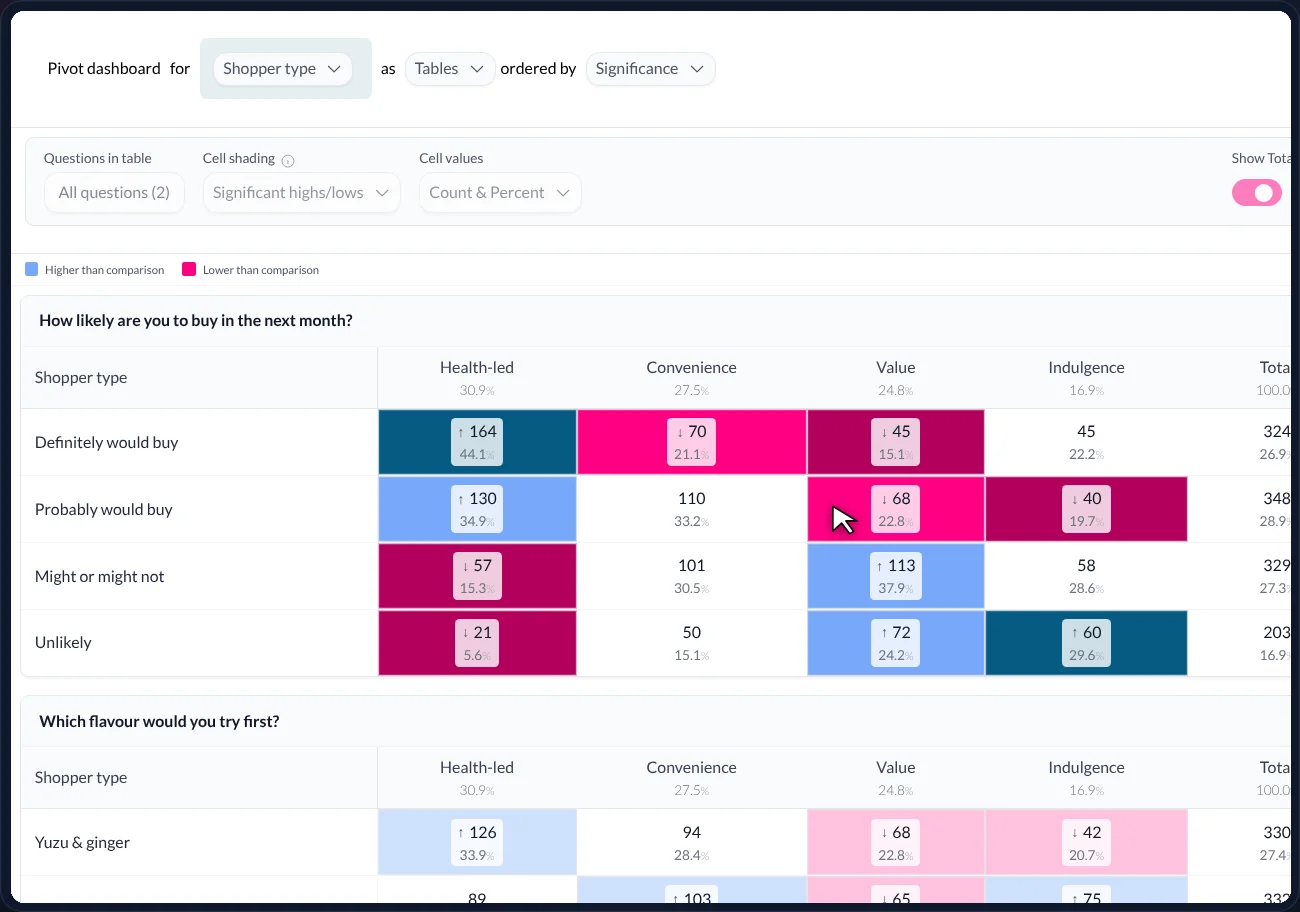
In short — 1 minute
Or read the full walkthrough — about 16 minutes
- What it is. Crosstabs — every question in the survey broken down by a chosen grouping (the “banner”) — for the whole study, with significance testing built in.
- What problem it solves. Delivering 300+ tables and knowing which few contain a real difference used to be two jobs, often two tools and a week of Excel formatting.
- What you do. Choose the banner in one sentence. Order the tables by significance. Switch shading on so significant highs and lows stand out. Build a NET if you need one. Export.
- What you get. On screen: the differences that matter, first. In Excel: a branded workbook with a contents sheet, one worksheet per question, and significance letters — mirroring what was on screen.
- 336
- tables in this study · 112 questions × 3 banners
- 44.1%
- Health-led shoppers who would definitely buy — vs 26.9% overall
- p = 0.008
- for that cell, after adjusting for multiple comparisons
- 1
- workbook, every table, formatted and branded
01 · What it is
A crosstab for every question, tested, ordered and ready to hand over.
A crosstab (or banner table) shows one question broken down by the groups in another — purchase intent by shopper type, say. Researchers produce them for every question in a study. Table Studio is where that happens in AddMaple.
The problem
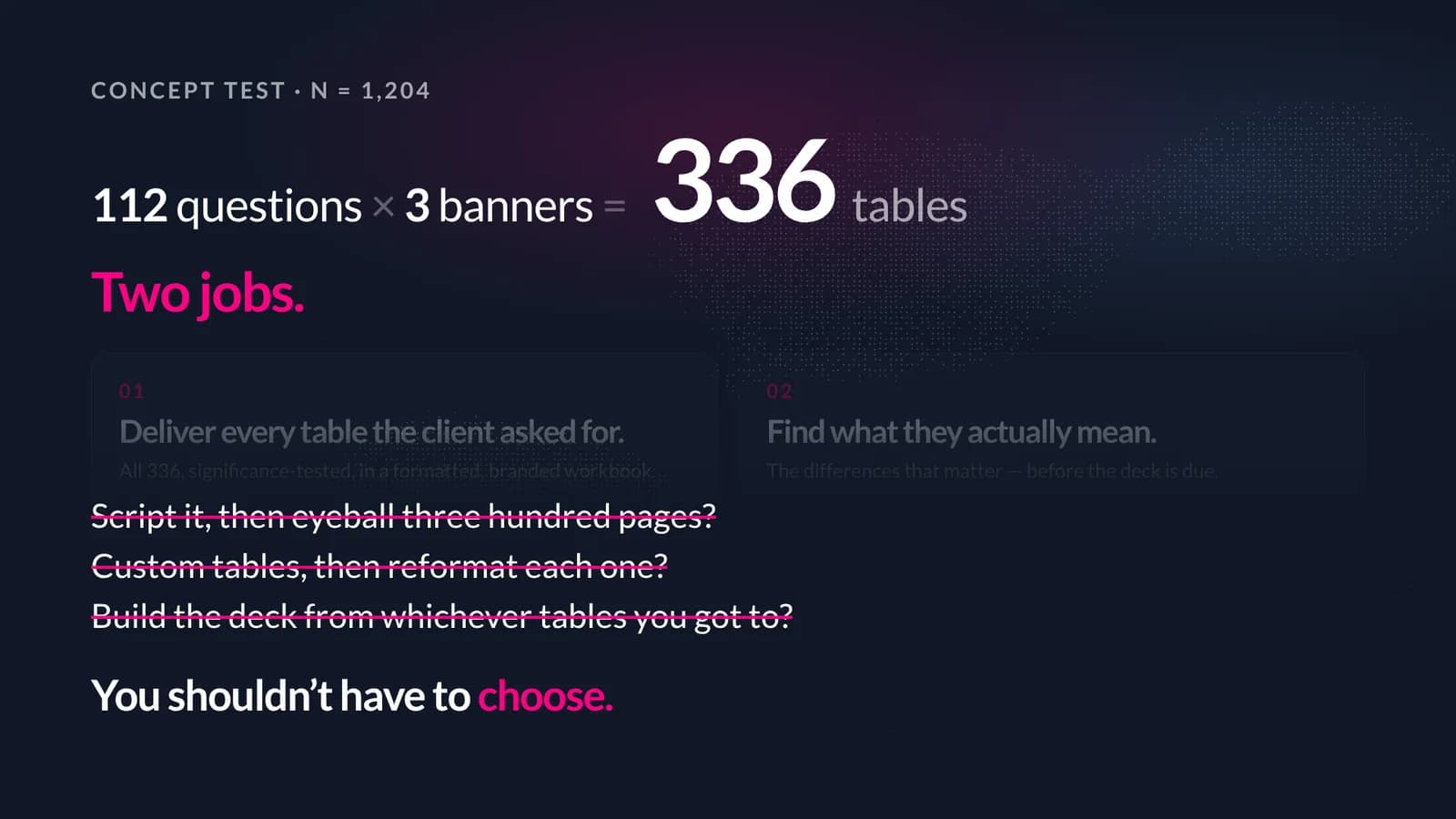
A study with 112 questions and three banners is 336 tables. Someone has to produce them all, format them, and — separately — work out which cells show a real difference rather than noise. Traditionally that was a tabs vendor or a week in Excel, with significance testing bolted on afterwards, if at all.
What it does
Builds every table from the same engine that draws AddMaple’s charts. Runs a significance test on every cell against the other columns, adjusting for the number of comparisons. Orders the tables so the ones with the largest differences come first, shades the cells that are significantly high or low, and exports everything to a formatted workbook.
What you end up with
A screen you can read top to bottom to find what matters, and an Excel deliverable the client can open on Monday — same numbers, same tests, same shading. No second tool and no formatting week.
Use it when…
A client expects a full set of tables; you need to check hundreds of breakdowns for real differences; or you want to know which groups differ on which questions before deciding what to chart.A banner can be…
Any question — demographics, customer type, brand used — or any derived column: a NET you built, or an audience group found with segmentation. Build it once; it is available as a banner everywhere.It answers…
“Is this difference real?” It does not answer “which question matters most for the outcome?” — that is Key drivers. The two are kept separate on purpose.
02 · The example
The sparkling tea study, broken down by shopper type.
The illustrative study throughout this series: a concept test for a sparkling tea, 1,204 respondents, 112 questions. Overall, 26.9% say they would definitely buy. The client’s banner plan has three groupings; the one we follow here is Shopper type, with four groups — Health-led, Convenience, Value and Indulgence.
The question is the one every banner table is really asking: does purchase intent differ between these groups, and if so, is the difference large enough to trust? With 112 questions to check, the second half of that question is where the time goes — and where Table Studio changes the job.
03 · Step by step
From a sentence to a workbook.
Table Studio is a view of the whole study. You tell it what to show using the sentence bar at the top, adjust the toolbar beneath it, and read down. Here is each step with what is on screen.
- 01
Say what you want, in one sentence
What you are seeing: the sentence bar — Pivot dashboard for [Shopper type] as [Tables] ordered by [Significance]. Each bracketed part is a drop-down. “Pivot dashboard for Shopper type” means: break every question down by shopper type. “As Tables” chooses tables rather than charts. “Ordered by Significance” sorts the questions so those where the groups differ most come first.
Change the banner and all 112 tables rebuild. Switch the ordering back to “Data order” and they return to questionnaire order.
- 02
Shade the cells that matter
What you are seeing: the toolbar under the sentence. Cell shading set to Significant highs/lows colours a cell blue when it is significantly higher than the comparison and pink when significantly lower; everything else stays white. Cell values set to Count & Percent shows both the number of people and the column percentage in every cell. The Show Total column toggle adds the all-respondents column for reference.
In the first table, Health-led · Definitely would buy is the darkest blue cell: 164 people, 44.1%, with an up-arrow. The same row is pink under Convenience and Value — significantly lower.
Shading on. Blue = significantly higher than the comparison, pink = significantly lower, darker = more confident. Counts and percentages stay visible in every cell. - 03
Build a NET, if the client’s number needs one
A NET is a row that groups answers together — here, Likely to buy = Definitely + Probably, which is 672 people, 55.8%. Define it once in the question and it appears in this table, in the workbook, and as an outcome for Key drivers.
- 04
Export the workbook
What you are seeing: the Excel export dialog over the live table. The options mirror the toolbar — counts, percentages, significance letters, the Total column — so the workbook contains what was on screen.
The download is a formatted, branded Excel workbook: a contents sheet with one row per question, one worksheet per question, significant cells shaded, and a “Back to Contents” link on every sheet. All 336 tables.
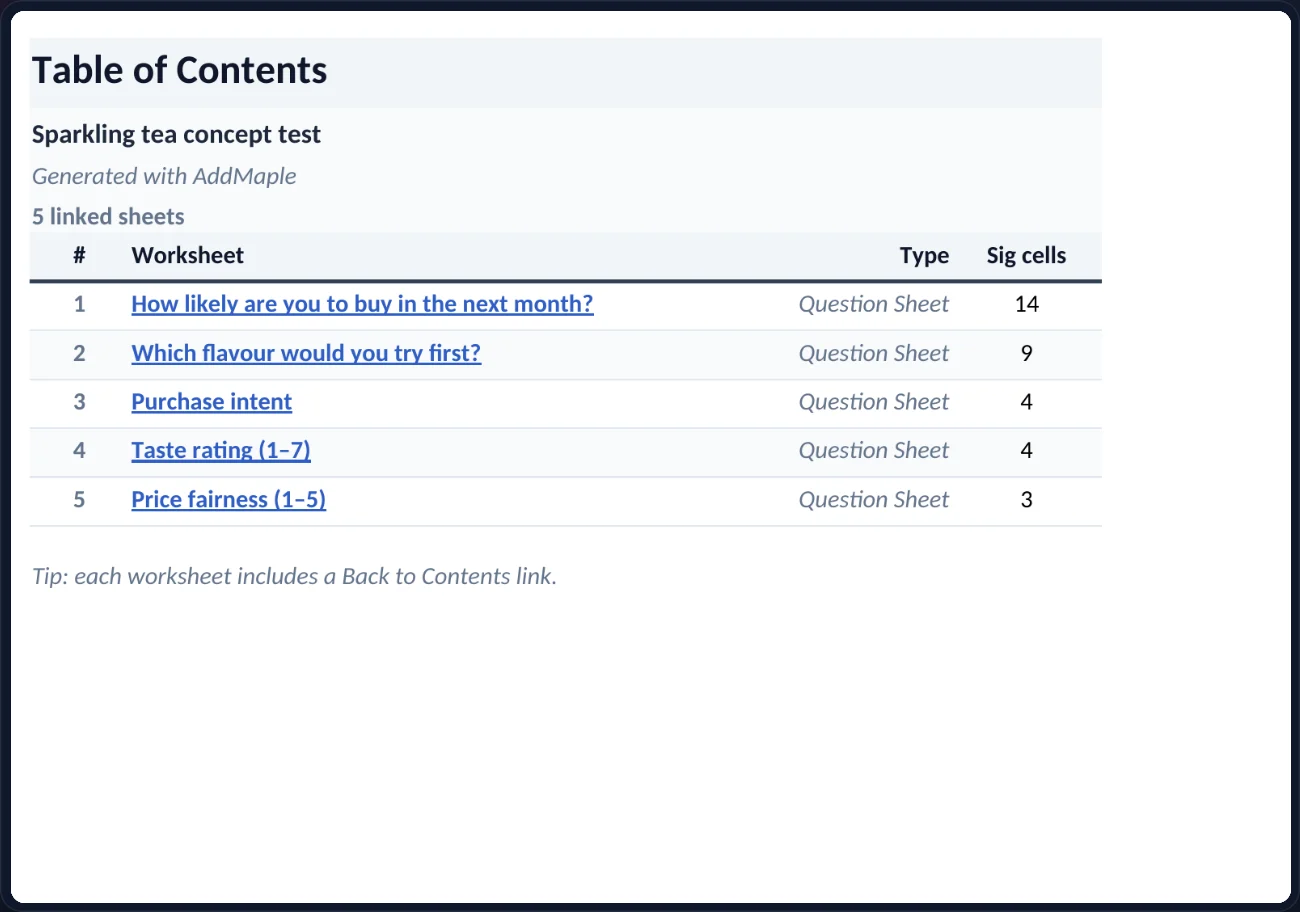
The export dialog. What you see on screen is what the workbook contains.
04 · How to read the result
A page of the workbook, explained.
The Excel worksheet is the version most clients will read, so here is one — the purchase-intent question with two banners side by side — part by part.
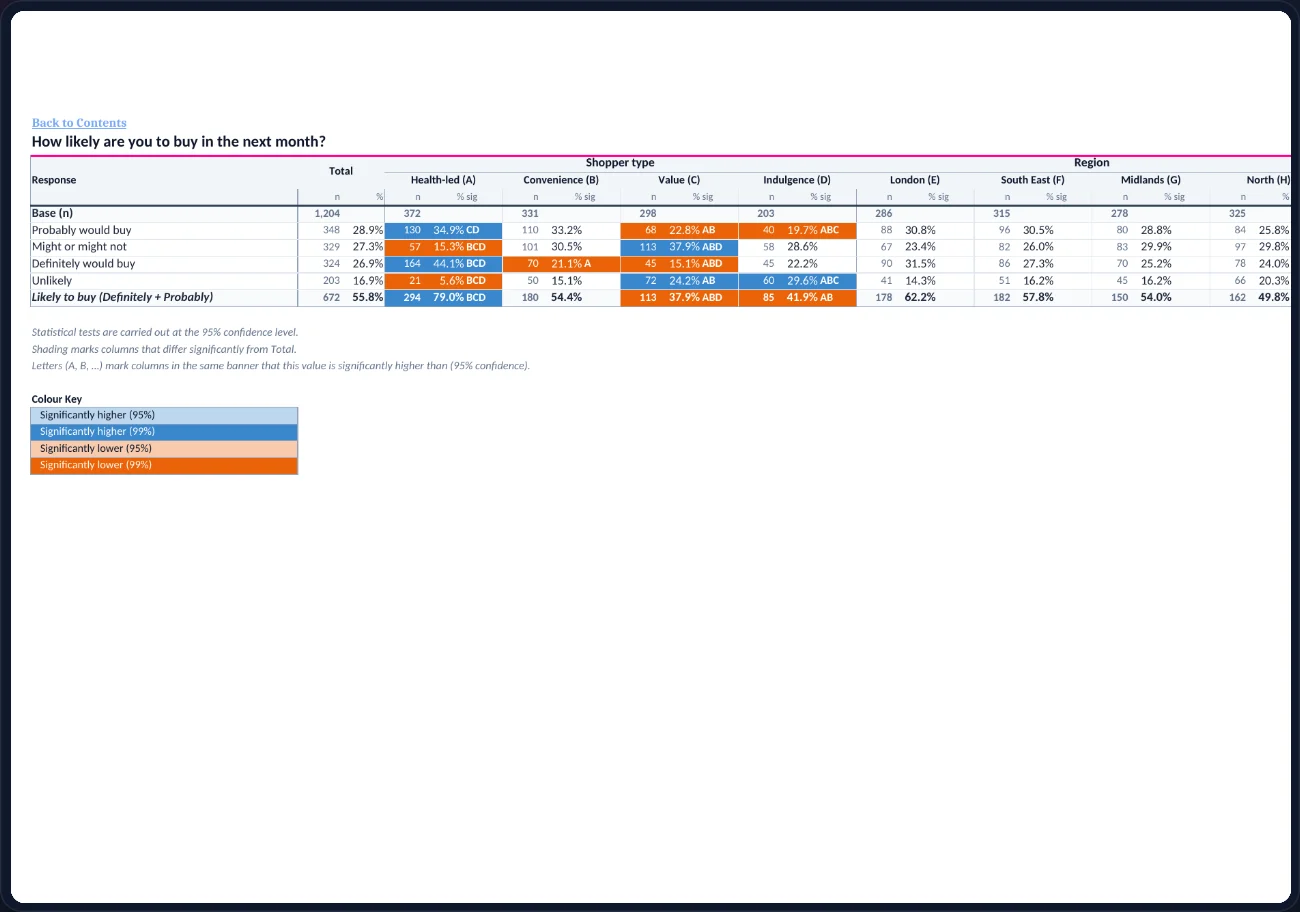
One worksheet from the exported workbook: purchase intent by Shopper type and by Region, with a colour key and the test stated in the footnotes.
- Question title and Back to Contents
- Each worksheet is one question. The link at the top returns to the contents sheet, which lists every question with a count of its significant cells.
- Banner groups and column letters
- Columns are grouped under their banner — Shopper type (A–D) and Region (E–H) here — with Total on the left. The letter in brackets identifies each column for the significance letters.
- Base (n)
- The first row of numbers is how many people answered in each column: 1,204 in total, 372 health-led, and so on. Always check the base before trusting a percentage.
- n, % and sig
- Every cell has three parts: the count, the column percentage, and the significance letters. Health-led · Definitely would buy reads 164 · 44.1% · BCD.
- The letters
- BCD means this cell is significantly higher than columns B, C and D — Convenience, Value and Indulgence — at the 95% level. Letters only ever compare columns within the same banner.
- Shading
- Blue = significantly higher than Total, orange = significantly lower; the darker shade means 99% confidence rather than 95%. The colour key is printed on the sheet.
- The NET row
- Likely to buy (Definitely + Probably), in bold at the bottom of the table — 672 · 55.8% overall, 294 · 79.0% among health-led shoppers.
- Footnotes
- The test, the confidence level and what the shading and letters mean are written under the table, so the sheet explains itself when it is forwarded.
05 · What it told us
One cell that matters. One banner that doesn’t.
- 44.1%
- Health-led · Definitely would buy
- 26.9%
- All respondents · Definitely would buy
- —
- Region · Definitely would buy
164 of 372. Letters BCD: significantly higher than every other shopper type. Adjusted p = 0.008.
324 of 1,204. The number the topline reported.
286 / 315 / 278 / 325 across London, South East, Midlands, North. No clear significant difference.
That is the whole finding, and the table states it without help: who is different (health-led shoppers), by how much (44.1% against 26.9%), how sure (p = 0.008 after adjustment), and what isn’t different (region). The last part matters as much as the first — and “no clear significant difference” is what the table says, rather than “nothing”.
06 · How we keep it honest
What the shading will and won’t tell you.
Adjusted, not optimistic
Pairwise column tests are adjusted (Holm) within each banner for the number of comparisons. The letters you see have already paid for the number of tests behind them.Non-significance is stated
Region shows ‘no clear significant difference’. The table says so. An unshaded cell never implies ‘nothing is happening’ — only that the difference could not be distinguished from chance.Base sizes stay visible
Counts sit under every percentage and the Total column is one toggle away, so a striking percentage on a small base is visible as such.Same engine as the charts
The table, the chart and the Excel cell all come from one computation. Change a filter or a NET and they move together.
07 · Words used on this page
A short glossary.
- Crosstab / banner table
- One question broken down by the groups in another. The rows are the answers; the columns are the groups.
- Banner
- The grouping used for the columns — Shopper type here. A study typically has a ‘banner plan’ of two or three.
- Pivot dashboard
- AddMaple’s view of the whole study broken down by one banner — every question as a table (or chart), one after another.
- Ordered by significance
- Questions sorted so those with the largest, most reliable differences between the banner groups come first.
- Column percentage
- The percentage of people in that column who gave that answer — 44.1% of health-led shoppers would definitely buy.
- Significance letters
- Letters naming the other columns in the banner that this cell is significantly higher than. BCD = higher than columns B, C and D.
- Adjusted p-value (Holm)
- The probability of seeing a gap this large by chance, corrected for the fact that many comparisons are being made at once. Lower is stronger evidence; 0.05 is the usual threshold.
- NET
- A row that groups answers — Likely to buy = Definitely + Probably. Defined once, used in every table, chart and model.
08 · Questions
What researchers ask us about Table Studio.
- Which test is behind the letters and the shading?
- Pairwise two-proportion tests between banner columns, with Holm adjustment within each banner. A letter means the cell is significantly higher than that column at the chosen level; shading compares the cell with the comparison group. The adjusted p-value is available on the cell.
- Can I use weights?
- Yes. Weighted studies show weighted bases and percentages, labelled as such, with the unweighted count available alongside.
- Does the Excel workbook match the screen?
- It mirrors the current output options — counts, percentages, letters, Total — in a formatted, branded layout. Each question is one worksheet; the contents sheet links to all of them.
- What if I need a banner that isn’t a question?
- A NET, a derived variable, or a saved audience group is a column like any other and can be the banner. Build it once; it is available everywhere.
- Do I have to know statistics to read it?
- No. Blue means higher, pink or orange means lower, darker means more confident, and the letters name the columns the cell beats. The test and confidence level are printed on every sheet for anyone who wants to check.
Keep reading — the same study, other questions
Key drivers
Which answers relate most to the result?
Rank the questions most strongly related to an outcome — across scales, categories and coded open-ends.
Read →Clean data
From export to research-ready
Labels, scales, grids and duplicates fixed in minutes — every change visible and reversible.
Read →Ask Maple
Your research agent
An agent that works inside the analysis — explaining, charting, coding, modelling and drafting the story.
Read →
AddMaple Mosaic
Deliver every table. Find the ones that matter.
Bring a study and a banner plan. We’ll build the tables with you — and hand you the workbook at the end of the call.